> ## Documentation Index
> Fetch the complete documentation index at: https://partner-integrations.voyado.com/llms.txt
> Use this file to discover all available pages before exploring further.
# Best practice
Here are some best practices when working with Vipps and Engage.
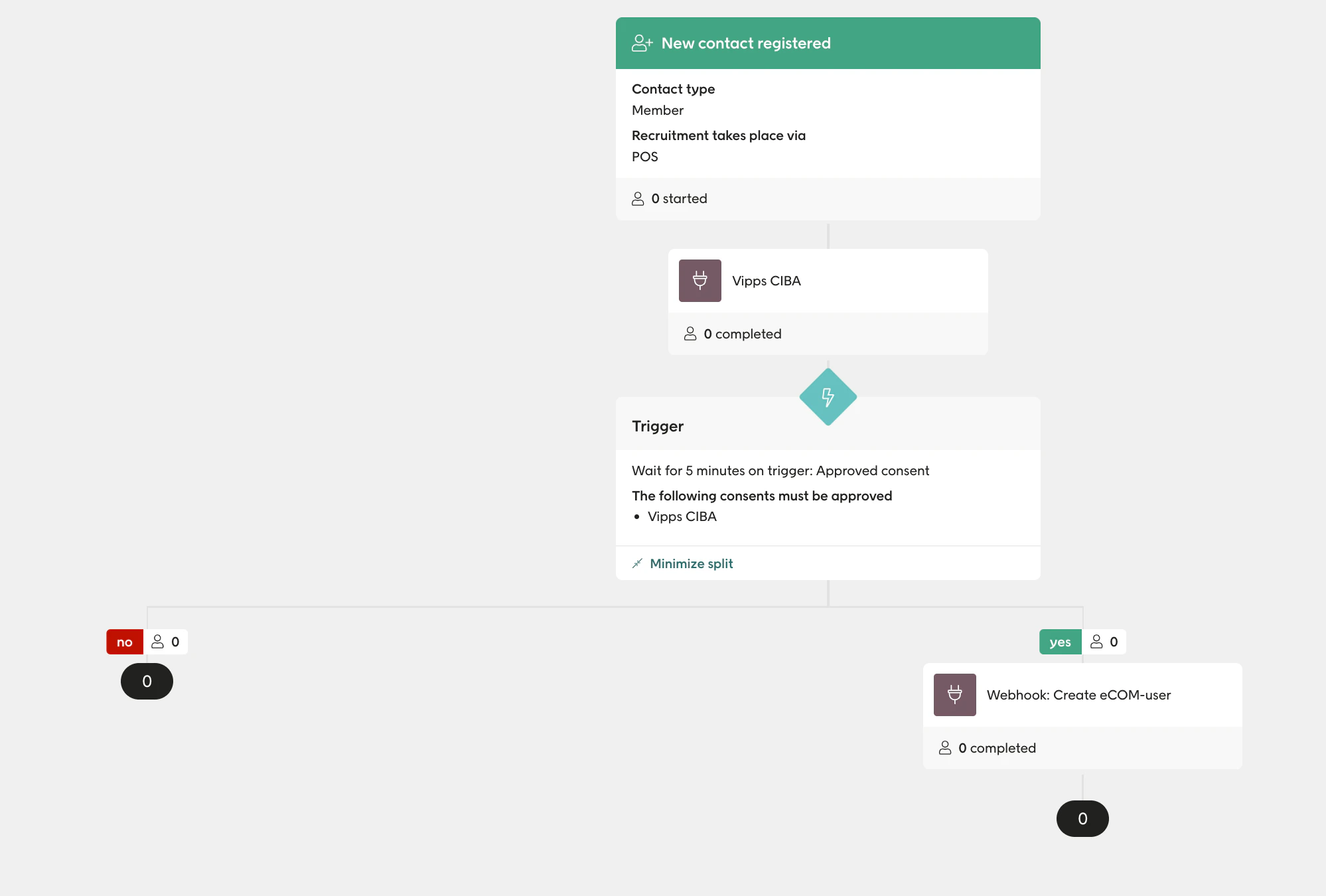
## 1 - Creating account online
Follow these steps:
* Send a reset password email from Voyado
* Use a custom activity to create a customer in the e-com
 ## 2 - Welcome flow
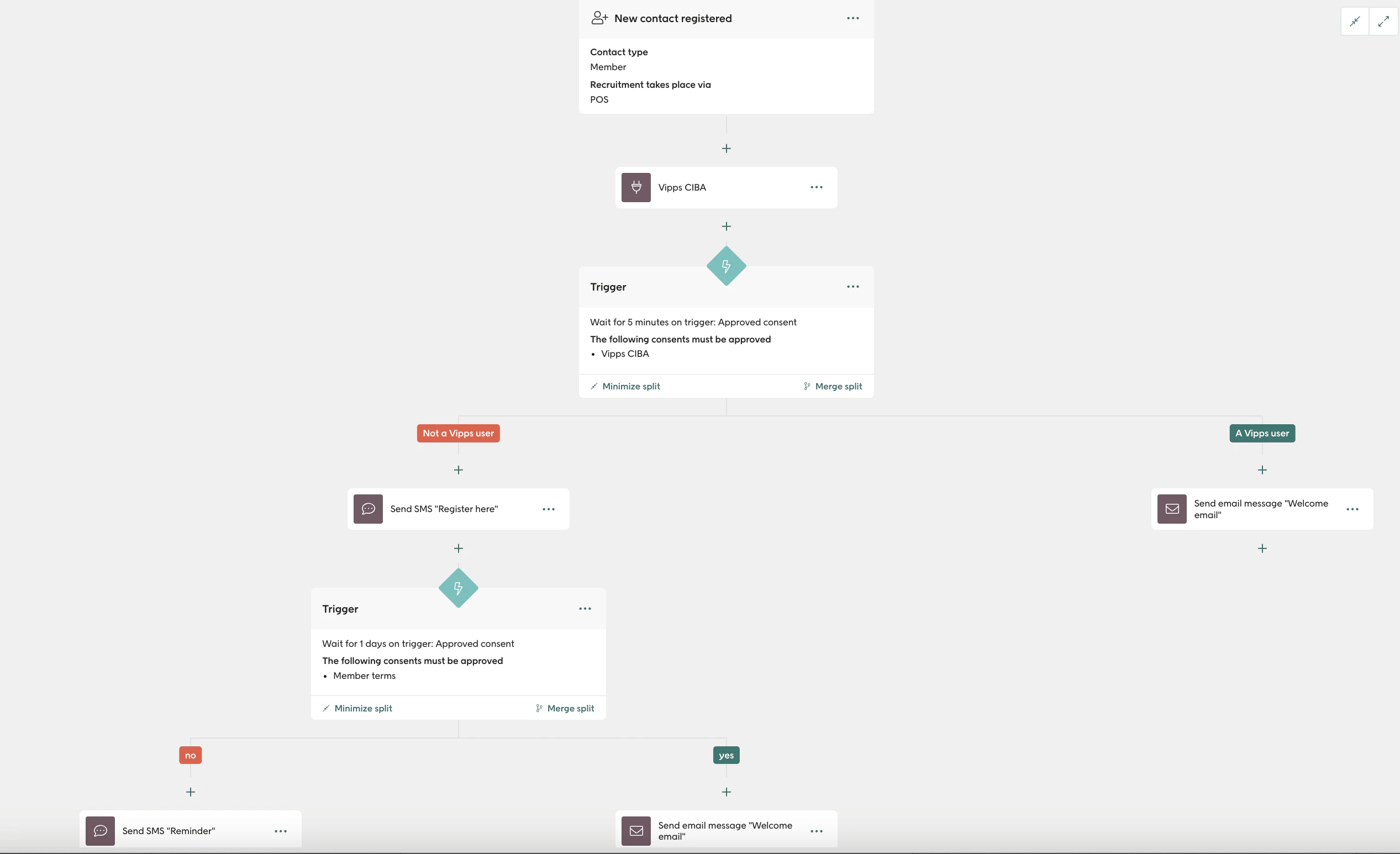
The welcome automation flow looks like this:
## 2 - Welcome flow
The welcome automation flow looks like this:
 ## 3 - Promotions
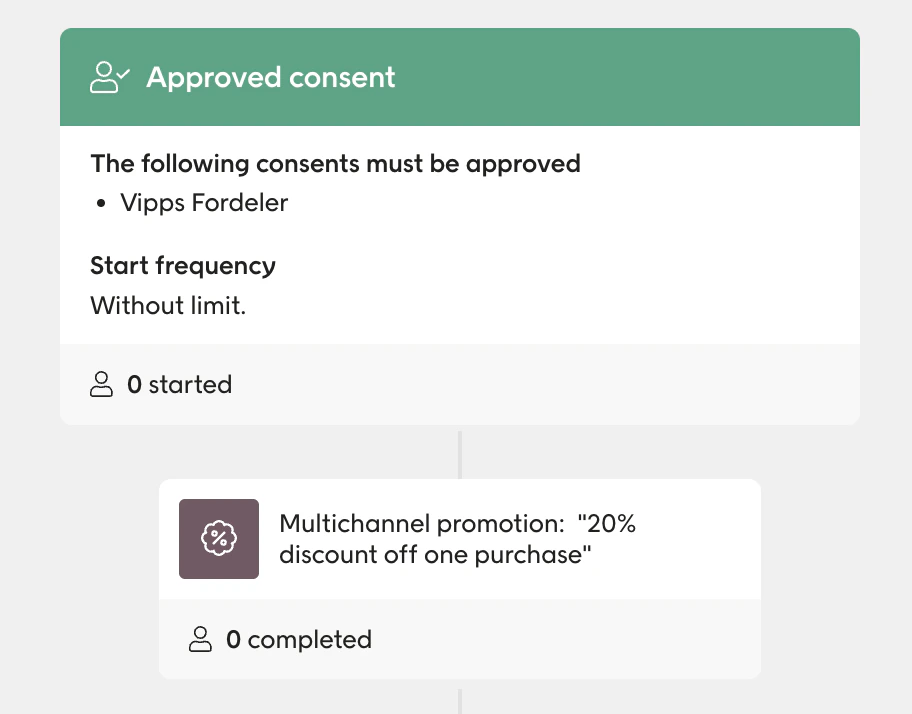
Create an automation in Engage that triggers when the consent `VippsFordeler` is set to true.
When a contact enters this automation, assign a promotion to them. This ensures that new sign-ups will always see a promotion in the app as soon as they give their consent to Vipps Benefits.
## 3 - Promotions
Create an automation in Engage that triggers when the consent `VippsFordeler` is set to true.
When a contact enters this automation, assign a promotion to them. This ensures that new sign-ups will always see a promotion in the app as soon as they give their consent to Vipps Benefits.
 ## 4 - Segmentations
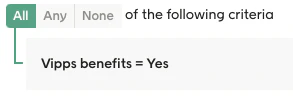
Contacts who have consented to Vipps Benefits:
## 4 - Segmentations
Contacts who have consented to Vipps Benefits:
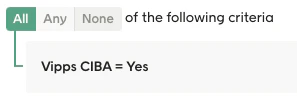
 Contacts who have the approved Vipps CIBA flow:
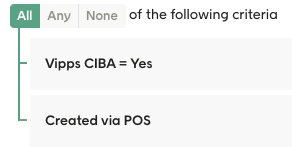
 Created from the POS:
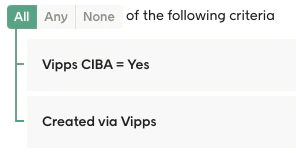
 Created from the Vipps app:
 ## 5 - Sign-ups before and after go-live
You can segment for the number of sign-ups you had before going live, and compare that to afterwards.
Before go-live:
## 5 - Sign-ups before and after go-live
You can segment for the number of sign-ups you had before going live, and compare that to afterwards.
Before go-live:
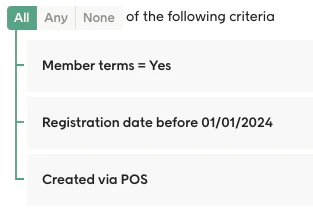 After go-live:
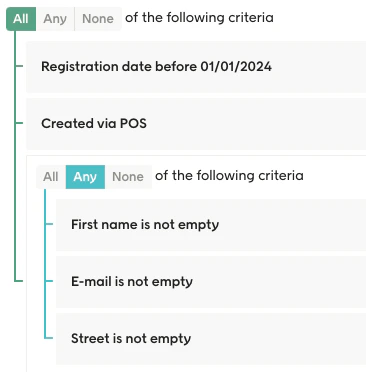
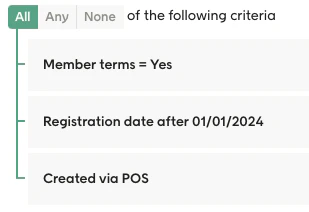 This way you can compare if you receive more consents from your customers, and also if the data looks better, when they start using Vipps versus before they uses it.
 ## 6 - Redeeming vouchers and promotions
You can examine the redemption of vouchers and promotions and compare the contacts who have Vipps Benefits activated to those who don't.
For those contacts who have Vipps Benefits:
## 6 - Redeeming vouchers and promotions
You can examine the redemption of vouchers and promotions and compare the contacts who have Vipps Benefits activated to those who don't.
For those contacts who have Vipps Benefits:
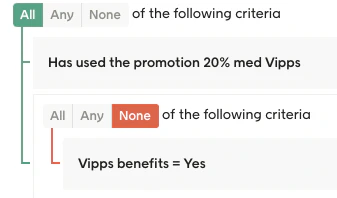
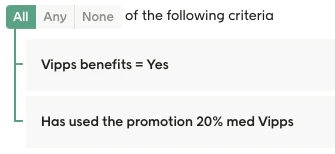 And for those who don't:
 ## 7 - Handling non-Vipps users
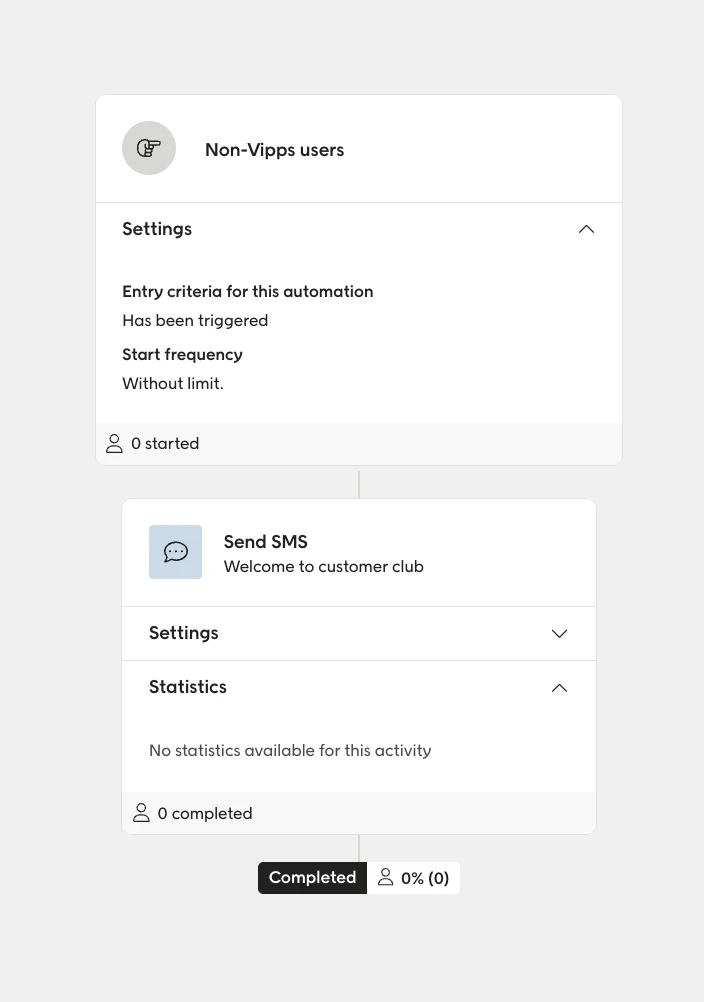
For non-Vipps users you need to create a new automation and choose **Trigger a SMS-flow for non-Vipps users**.
Select the trigger and create an SMS as the first step.
## 7 - Handling non-Vipps users
For non-Vipps users you need to create a new automation and choose **Trigger a SMS-flow for non-Vipps users**.
Select the trigger and create an SMS as the first step.