> ## Documentation Index
> Fetch the complete documentation index at: https://partner-integrations.voyado.com/llms.txt
> Use this file to discover all available pages before exploring further.
# Configuration
When the extension has been successfully installed, you can start configuring it.
## Enabling the extension
In Adobe Commerce admin, navigate to **Stores > Configuration > Integrations** and select the "Voyado" tab.
Inside this configuration space, you'll be able to enable or disable the functionality supported by the extension.
Start by enabling the extension under “General” settings as seen in this video:
## Websites
You can connect your Voyado Engage environment/s to all your websites.
In the top left corner, change the website under “Scope”. You can choose to have a default setup for all websites, connected to one Voyado Engage environment (recommended), or configure websites separately, connecting each one to a separate instance.
## Establish your connection settings
Next, you'll need to input the credentials for your Engage environment.
**Base URL:** Input the Base URL of your Engage environment
```http Example of a base URL theme={null}
https://mytenantid.staging.voyado.com
```
**API key**: Input your Engage API key (for example: ).
```text Example of an Engage API key theme={null}
00000000-0000-0000-0000-000000000000
```
**Source:** Input the source of contact registration to use as a filter when triggering marketing automation acquisition journeys in Engage. For example: "ecom-eu".
**StoreExternalId:** Input the external ID of the Engage store that you want to connect your customers and orders to.
## Configure the contact sync
This integration with Engage supports the sync of customers, guests and newsletter subscribers. These different types of customers are each stored in Voyado Engage as separate contact types.
All contact types must be created in Engage by the Voyado team before contact exports are enabled.
To allow syncing of the Customer entity you will have to:
1. Enable the customer export, found under **Export > Enable customer export**.
2. Go to the “Customer Specific Settings” section and enable “Create Voyado contact as member”.
If you want to sync your guest customers and store them in Engage, follow these steps:
1. Enable the customer export which can be found under **Export > Enable customer export**.
2. Go to the “Customer Specific Settings” section and enable **Create Voyado contact also from Guest Customer**.
If you want to store your newsletter subscriptions in Engage:
1. Enable the newsletter subscriber export under **Export > Enable newsletter subscriber export**.
## Sync all contacts to Engage as type "Member"
With this setting you can choose to save ALL contacts - customers, guests and newsletter subscribers - as contact type "Member" in Engage.
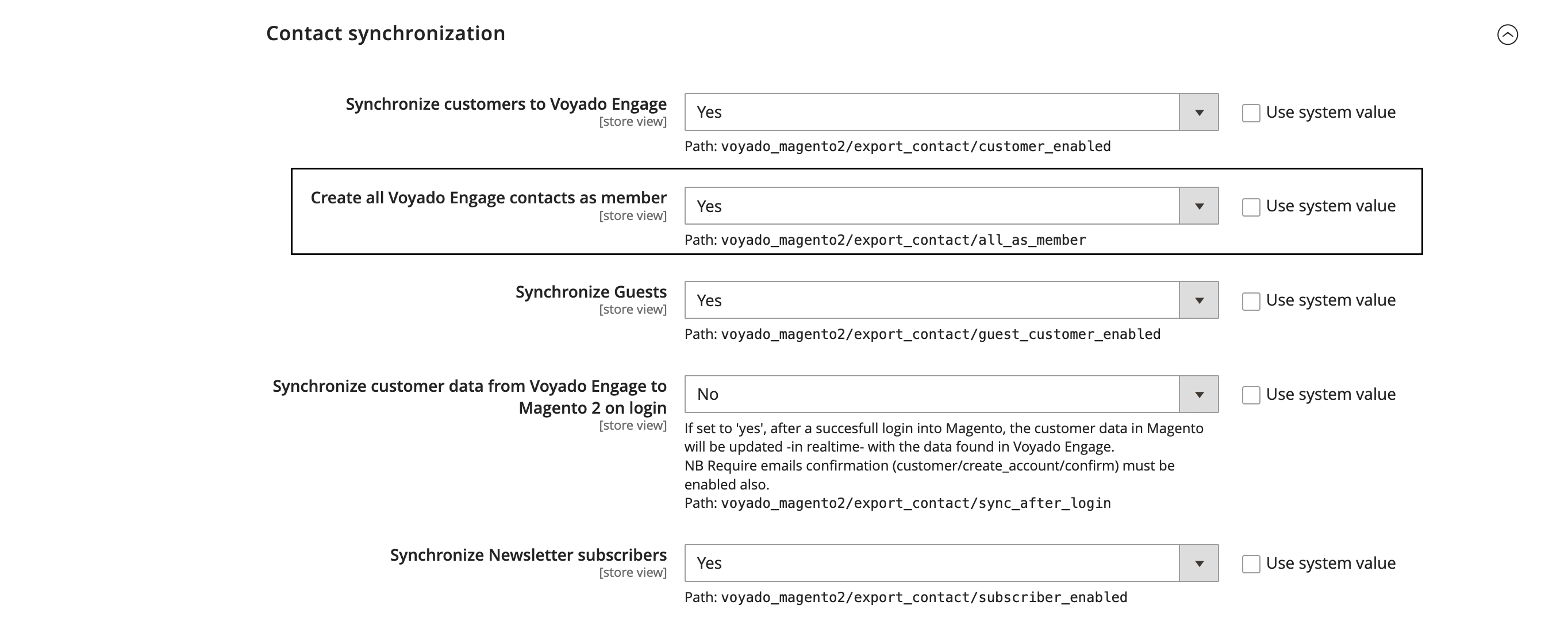 The benefit of doing this is to minimize confusion and make for a cleaner integration. By only having the contact type "Member" it also means fewer calls to the Engage API. Voyado recommends this approach.
Using three different contact types might be useful if you want to separate different customers from each other in Engage. If you have a loyalty program, for example, and want that only account holders should be part of it, then it might be easier to have three types. However, this can also be done by making every customer have the contact type Member and using a `HasAccount` consent to tell them apart.
## Phone number validation
Voyado Engage requires a phone number to have a country calling code. If no validation for this is done in the front-end, and a phone number without a country calling code is input in checkout, the extension will validate that phone number based on the code of the country chosen in checkout.
For example:
* A customer chooses country “Sweden” and gives the phone number “0701234567” in checkout.
* The extension validates to check if the number is a valid Swedish number.
* If it is, we add a country calling code and format the number to “+46701234567” before we send it to Engage.
* If not, we just exclude the phone number from the request sent to Engage.
## Enable Engage to update customers
In the configuration area you have the option of activating a two-way sync, allowing Engage to update customers in Adobe Commerce. The two-way sync is connected to the login event, meaning that data is fetched from Engage and used to update the customer whenever they login to their account.
You can sync any or all of the name and address data or the newsletter subscription flag from Engage.
Two-way sync is only applicable if you have the “Require Email Confirmation” setting enabled in Adobe Commerce. This can be found in **Stores > Configuration > Customer Configuration**.
Voyado recommends that you at least enable the “Sync newsletter subscription” setting connected to the two-way sync. This is so that both platforms are in sync and so that there is no mismatch in the newsletter subscription field.
Follow these steps to enable to two-way sync:
1. Enable the “Sync after login” setting which can be found under **Customer specific settings > Sync after login**.
2. Enable “Sync name and address” if you want Engage to update this information in Adobe Commerce.
3. Enable “Sync newsletter subscription” if you want Engage to update this information in Adobe Commerce (recommended).
## Contact data model
Here are the fields in the contact model:
**Contact:**
* First name
* Last name
* Street
* City
* Zip code
* Country code
* Gender
* Recruited in store (the store where the contact signed up)
**Preferences:**
* Accepts email marketing
The contact data model can be extended by developing a custom patch.
## Configure syncing of purchases and returns
To sync purchases (known as "invoices" in Adobe Commerce) and returns ("credit memos" in Adobe Commerce) you must enable two separate exports. Activating these will allow you to create segments based on the contact's order history in Voyado Engage.
You can enable the invoice export at **Export > Enable invoice export**.
You can enable the credit memo export at **Export > Enable credit memo export**.
The benefit of doing this is to minimize confusion and make for a cleaner integration. By only having the contact type "Member" it also means fewer calls to the Engage API. Voyado recommends this approach.
Using three different contact types might be useful if you want to separate different customers from each other in Engage. If you have a loyalty program, for example, and want that only account holders should be part of it, then it might be easier to have three types. However, this can also be done by making every customer have the contact type Member and using a `HasAccount` consent to tell them apart.
## Phone number validation
Voyado Engage requires a phone number to have a country calling code. If no validation for this is done in the front-end, and a phone number without a country calling code is input in checkout, the extension will validate that phone number based on the code of the country chosen in checkout.
For example:
* A customer chooses country “Sweden” and gives the phone number “0701234567” in checkout.
* The extension validates to check if the number is a valid Swedish number.
* If it is, we add a country calling code and format the number to “+46701234567” before we send it to Engage.
* If not, we just exclude the phone number from the request sent to Engage.
## Enable Engage to update customers
In the configuration area you have the option of activating a two-way sync, allowing Engage to update customers in Adobe Commerce. The two-way sync is connected to the login event, meaning that data is fetched from Engage and used to update the customer whenever they login to their account.
You can sync any or all of the name and address data or the newsletter subscription flag from Engage.
Two-way sync is only applicable if you have the “Require Email Confirmation” setting enabled in Adobe Commerce. This can be found in **Stores > Configuration > Customer Configuration**.
Voyado recommends that you at least enable the “Sync newsletter subscription” setting connected to the two-way sync. This is so that both platforms are in sync and so that there is no mismatch in the newsletter subscription field.
Follow these steps to enable to two-way sync:
1. Enable the “Sync after login” setting which can be found under **Customer specific settings > Sync after login**.
2. Enable “Sync name and address” if you want Engage to update this information in Adobe Commerce.
3. Enable “Sync newsletter subscription” if you want Engage to update this information in Adobe Commerce (recommended).
## Contact data model
Here are the fields in the contact model:
**Contact:**
* First name
* Last name
* Street
* City
* Zip code
* Country code
* Gender
* Recruited in store (the store where the contact signed up)
**Preferences:**
* Accepts email marketing
The contact data model can be extended by developing a custom patch.
## Configure syncing of purchases and returns
To sync purchases (known as "invoices" in Adobe Commerce) and returns ("credit memos" in Adobe Commerce) you must enable two separate exports. Activating these will allow you to create segments based on the contact's order history in Voyado Engage.
You can enable the invoice export at **Export > Enable invoice export**.
You can enable the credit memo export at **Export > Enable credit memo export**.
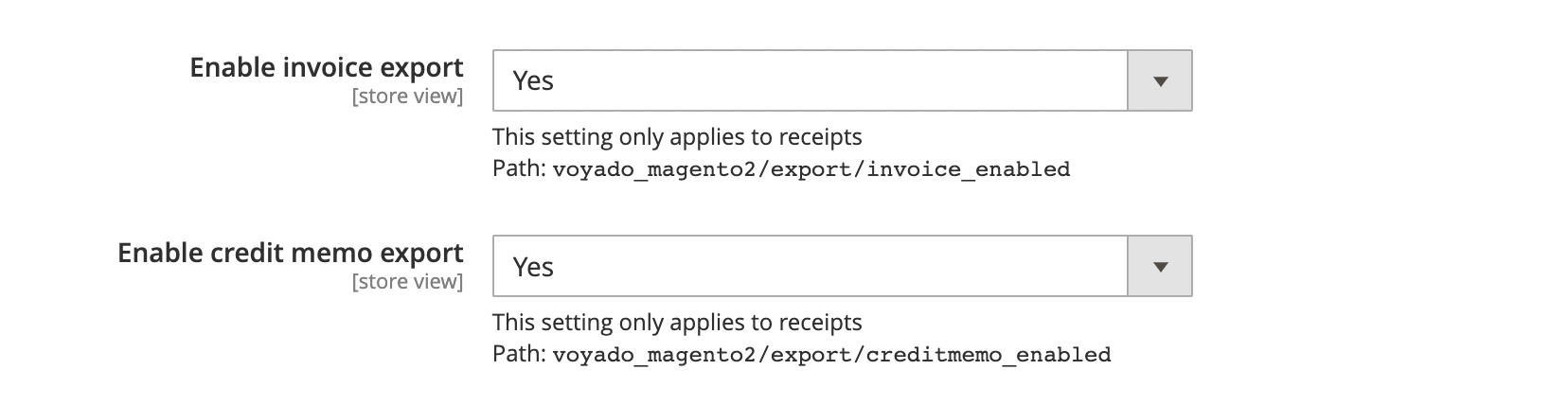 The order will only be stored for segmentation in Engage after it has been set to "invoiced" in Adobe Commerce Admin.
### Payload examples
```json theme={null}
{
"contact": {
"contactType": "member",
"matchKey": "f0352103-7143-4a44-a20d-af3300c58d7f",
"matchKeyType": "ContactId"
},
"createdDate": "2022-11-08T12:49:43+00:00",
"createdDateForXml": "2022-11-08T12:49:43+00:00",
"currency": "EUR",
"items": [
{
"articleName": "Joust Duffle Bag",
"articleNumber": "24-MB01",
"awardsPoints": true,
"extraData": [],
"grossPaidPrice": 85,
"quantity": 2,
"sku": "24-MB01",
"taxAmount": "17.0000",
"taxPercent": "25.0000",
"type": "PURCHASE"
}
],
"paymentMethods": [
{
"description": "Payment for: 000000034",
"type": "checkmo",
"value": 85
}
],
"receiptNumber": "000000034",
"storeExternalId": "opensource_demostore",
"taxDetails": {
"description": "TAX",
"percent": "25.0000",
"totalExcludingTax": 68,
"totalIncludingTax": 85,
"value": "19.5000"
},
"totalGrossPrice": 170,
"uniqueReceiptId": "000000034"
}
```
```json theme={null}
{
"contact": {
"contactType": "member",
"matchKey": "f0352103-7143-4a44-a20d-af3300c58d7f",
"matchKeyType": "ContactId"
},
"createdDate": "2022-11-08T12:49:43+00:00",
"createdDateForXml": "2022-11-08T12:49:43+00:00",
"currency": "EUR",
"items": [
{
"articleName": "Joust Duffle Bag",
"articleNumber": "24-MB01",
"awardsPoints ": true,
"extraData": [],
"grossPaidPrice": 42.5,
"quantity": -1,
"sku": "24-MB01",
"taxAmount": "8.5000",
"taxPercent": "25.0000",
"type": "RETURN"
}
],
"paymentMethods": [
{
"description": "Refund payment for: 000000034",
"type": "Refund",
"value": -42.5
}
],
"receiptNumber": "000000034",
"storeExternalId": "opensource_demostore",
"taxDetails": {
"description": "TAX",
"totalExcludingTax": 34,
"totalIncludingTax": 42.5,
"value": "8.5000"
},
"totalGrossPrice": -42.5,
"uniqueReceiptId": "34-20"
}
```
## Configure Order Notifications
The Voyado module can automatically notify Voyado Engage when an order reaches a specific status. This is how Engage knows when to trigger post-purchase automations, loyalty point awards, and transactional communications.
### **Enabling order notifications**
1. Go to **Stores → Configuration → Voyado Engage → Order notifications**
2. Set **Enable Order notifications** to **Yes**
3. In **Send notification on order statuses**, select every status that should trigger a notification to Engage
4. Click **Save Config**
### **Choosing the right statuses**
You can select one or more statuses. A notification is sent to Engage each time an order is saved with one of the selected statuses.
**Common configurations:**
| Goal | Status |
| ---------------------------------------- | ---------- |
| Notify Engage when an order is confirmed | Pending |
| Notify Engage when an order is shipped | Processing |
| Notify Engage when an order is fulfilled | Complete |
| Notify Engage when an order is cancelled | Cancelled |
The order will only be stored for segmentation in Engage after it has been set to "invoiced" in Adobe Commerce Admin.
### Payload examples
```json theme={null}
{
"contact": {
"contactType": "member",
"matchKey": "f0352103-7143-4a44-a20d-af3300c58d7f",
"matchKeyType": "ContactId"
},
"createdDate": "2022-11-08T12:49:43+00:00",
"createdDateForXml": "2022-11-08T12:49:43+00:00",
"currency": "EUR",
"items": [
{
"articleName": "Joust Duffle Bag",
"articleNumber": "24-MB01",
"awardsPoints": true,
"extraData": [],
"grossPaidPrice": 85,
"quantity": 2,
"sku": "24-MB01",
"taxAmount": "17.0000",
"taxPercent": "25.0000",
"type": "PURCHASE"
}
],
"paymentMethods": [
{
"description": "Payment for: 000000034",
"type": "checkmo",
"value": 85
}
],
"receiptNumber": "000000034",
"storeExternalId": "opensource_demostore",
"taxDetails": {
"description": "TAX",
"percent": "25.0000",
"totalExcludingTax": 68,
"totalIncludingTax": 85,
"value": "19.5000"
},
"totalGrossPrice": 170,
"uniqueReceiptId": "000000034"
}
```
```json theme={null}
{
"contact": {
"contactType": "member",
"matchKey": "f0352103-7143-4a44-a20d-af3300c58d7f",
"matchKeyType": "ContactId"
},
"createdDate": "2022-11-08T12:49:43+00:00",
"createdDateForXml": "2022-11-08T12:49:43+00:00",
"currency": "EUR",
"items": [
{
"articleName": "Joust Duffle Bag",
"articleNumber": "24-MB01",
"awardsPoints ": true,
"extraData": [],
"grossPaidPrice": 42.5,
"quantity": -1,
"sku": "24-MB01",
"taxAmount": "8.5000",
"taxPercent": "25.0000",
"type": "RETURN"
}
],
"paymentMethods": [
{
"description": "Refund payment for: 000000034",
"type": "Refund",
"value": -42.5
}
],
"receiptNumber": "000000034",
"storeExternalId": "opensource_demostore",
"taxDetails": {
"description": "TAX",
"totalExcludingTax": 34,
"totalIncludingTax": 42.5,
"value": "8.5000"
},
"totalGrossPrice": -42.5,
"uniqueReceiptId": "34-20"
}
```
## Configure Order Notifications
The Voyado module can automatically notify Voyado Engage when an order reaches a specific status. This is how Engage knows when to trigger post-purchase automations, loyalty point awards, and transactional communications.
### **Enabling order notifications**
1. Go to **Stores → Configuration → Voyado Engage → Order notifications**
2. Set **Enable Order notifications** to **Yes**
3. In **Send notification on order statuses**, select every status that should trigger a notification to Engage
4. Click **Save Config**
### **Choosing the right statuses**
You can select one or more statuses. A notification is sent to Engage each time an order is saved with one of the selected statuses.
**Common configurations:**
| Goal | Status |
| ---------------------------------------- | ---------- |
| Notify Engage when an order is confirmed | Pending |
| Notify Engage when an order is shipped | Processing |
| Notify Engage when an order is fulfilled | Complete |
| Notify Engage when an order is cancelled | Cancelled |
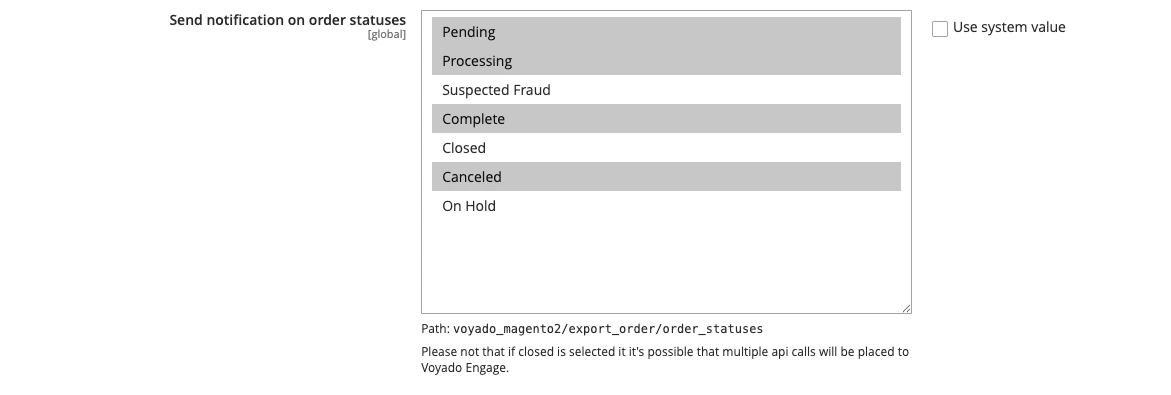 Select only the statuses that are meaningful for your Engage automations. Selecting too many can result in duplicate or premature notifications.
If you select **Closed**, be aware that Magento may save an order with this status multiple times (e.g. after a partial refund), which can result in multiple API calls being sent to Engage for the same order.
If you want to trigger “**Order returned notifications**”, you must enable the credit memo export (see the previous section).
### **Custom order statuses**
Custom order statuses — added by your theme, a third-party module, or your own Magento configuration — are fully supported. They appear in the status list automatically alongside the native Magento statuses. No additional setup or code changes are required to use them.
If a custom status such as **Packing** or **Shipped** is relevant to your Engage workflows, simply select it in the list and save.
Make sure that these custom order statuses are also configured on Voyado Engage side.
### Where to manage order statuses in Magento
If you need to create or modify order statuses, go to:\
**Stores → Order Status**
Any status created there will immediately become available in the Voyado notification settings.
### Order data model
Below are the "out of the box" data points included in transactional emails:
**Contact:**
* MatchKey (contactId)
* MatchKeyType (GUID)
**Order header:**
* Currency
* Created date
* Freight fee
* Freight fee VAT
* Language
* Order number
* Order status
* Payment methods
* Shipping method
* Payment status
* Total discounts
* Total gross price|
* Total VAT
* Total original price
* Total net price
* Total items price|
* Total discounts
**Customer information**
* First name
* Last name
* Middle name
* Phone
* Billing city
* Billing country
* Billing company
* Billing street
* Billing zip code
* Shipping first name
* Shipping last name
* Shipping middle name
* Shipping phone
* Shipping city
* Shipping company
* Shipping country
* Shipping street
* Shipping zip code
**Order items:**
* Description
* Price
* Quantity
* SKU
* Image URL
* Image target URL
* VAT amount
* VAT percent
* Type (PURCHASE or RETURN)
If you want to extend the order payload with the additional product attributes in Adobe Commerce, follow the instructions in the README.md file in Gitlab under the section "Extending".
If you don't have access to the file on Gitlab, try this article.
## Shipment settings
Add the Adobe Commerce tracking URL at **Shipment settings > Add the Adobe Commerce tracking URL also shown in the admin**.
Setting this to “Yes” will add the default tracking link provided by Adobe Commerce which is available in admin.
Select only the statuses that are meaningful for your Engage automations. Selecting too many can result in duplicate or premature notifications.
If you select **Closed**, be aware that Magento may save an order with this status multiple times (e.g. after a partial refund), which can result in multiple API calls being sent to Engage for the same order.
If you want to trigger “**Order returned notifications**”, you must enable the credit memo export (see the previous section).
### **Custom order statuses**
Custom order statuses — added by your theme, a third-party module, or your own Magento configuration — are fully supported. They appear in the status list automatically alongside the native Magento statuses. No additional setup or code changes are required to use them.
If a custom status such as **Packing** or **Shipped** is relevant to your Engage workflows, simply select it in the list and save.
Make sure that these custom order statuses are also configured on Voyado Engage side.
### Where to manage order statuses in Magento
If you need to create or modify order statuses, go to:\
**Stores → Order Status**
Any status created there will immediately become available in the Voyado notification settings.
### Order data model
Below are the "out of the box" data points included in transactional emails:
**Contact:**
* MatchKey (contactId)
* MatchKeyType (GUID)
**Order header:**
* Currency
* Created date
* Freight fee
* Freight fee VAT
* Language
* Order number
* Order status
* Payment methods
* Shipping method
* Payment status
* Total discounts
* Total gross price|
* Total VAT
* Total original price
* Total net price
* Total items price|
* Total discounts
**Customer information**
* First name
* Last name
* Middle name
* Phone
* Billing city
* Billing country
* Billing company
* Billing street
* Billing zip code
* Shipping first name
* Shipping last name
* Shipping middle name
* Shipping phone
* Shipping city
* Shipping company
* Shipping country
* Shipping street
* Shipping zip code
**Order items:**
* Description
* Price
* Quantity
* SKU
* Image URL
* Image target URL
* VAT amount
* VAT percent
* Type (PURCHASE or RETURN)
If you want to extend the order payload with the additional product attributes in Adobe Commerce, follow the instructions in the README.md file in Gitlab under the section "Extending".
If you don't have access to the file on Gitlab, try this article.
## Shipment settings
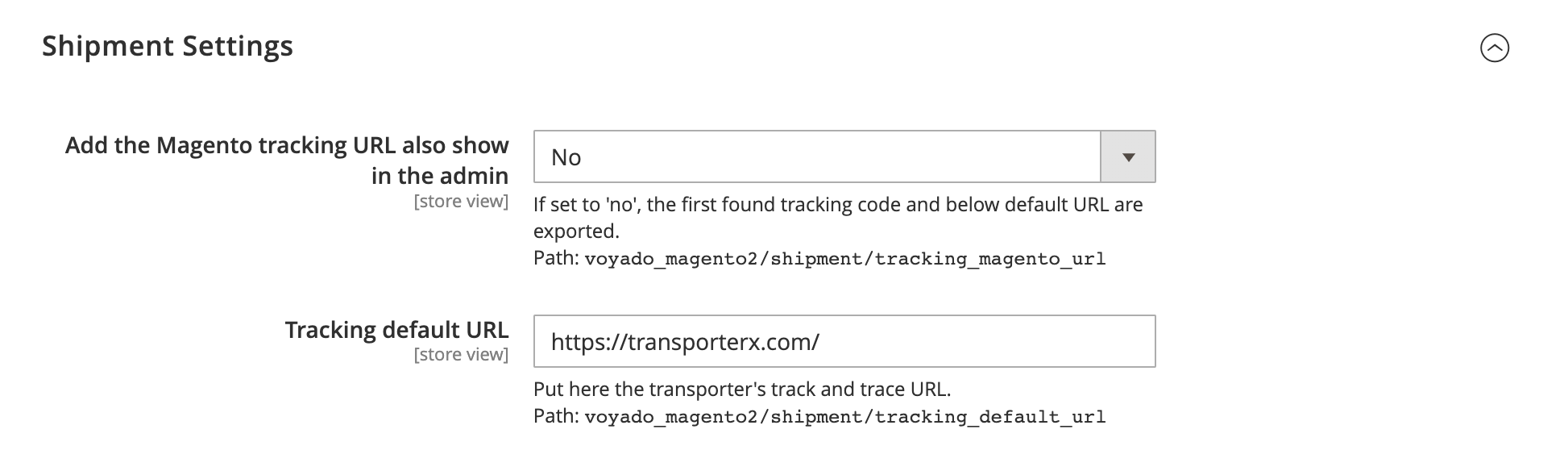
Add the Adobe Commerce tracking URL at **Shipment settings > Add the Adobe Commerce tracking URL also shown in the admin**.
Setting this to “Yes” will add the default tracking link provided by Adobe Commerce which is available in admin.
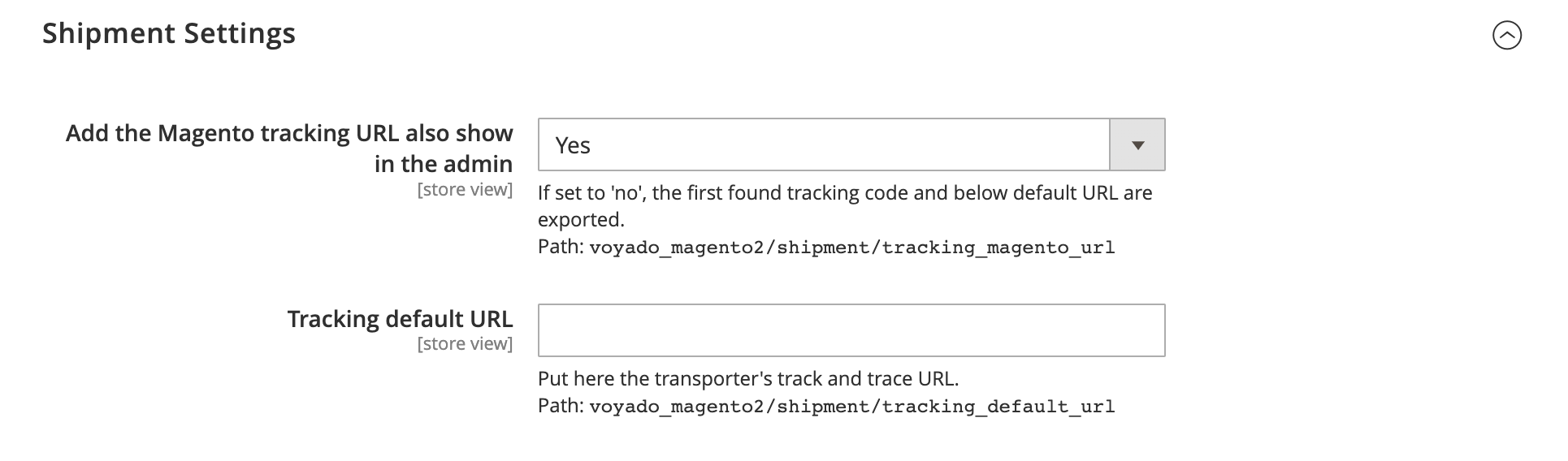 Setting this option to “No” will allow you to add your transporter's tracking URL. When the transactional email is sent, the first tracking number found will be added to the URL and sent in the payload.
 ## Soft identification
When you send a newsletter or email with a link to your customers in Engage, the links are encrypted with a contact identifier (contactId). This functionality can be used for various actions, such as triggering abandoned carts or product views through Engage's tracking script, or to personalize the experience on-site since Engage lets Adobe Commerce know who the visitor is.
To enable soft identification:
1. Navigate to **Soft Login > Enable** and select “Yes”.
2. Input your decryption key.
The Decryption Key, 32 characters long, is configured in the Engage back-office. AES is the encryption method used. Ask your Voyado team about this.
When a customer arrives on the site via a soft identification link, the Voyado Engage extension decrypts the link and identifies the customer. If the **Soft identification** setting is enabled, the extension will automatically push the contact identifier (contactId) to the Google Tag Manager (dataLayer) for further use in personalization.
In addition, if you set the **Display in front-end** setting to "Yes" the extension will also display the response payload directly in the storefront. This is useful for debugging purposes, as it lets you easily verify that the correct contact information is being retrieved and handled.
### DataLayer Event: softLogin
Once the customer is identified, the extension triggers a softLogin event in the dataLayer. This event contains the customer's **Contact ID** under the `contactId` property.
Soft identification only facilitates web-activity tracking and personalization on-site. It is not something that is supported out-of-the-box, since it is tightly coupled to front-end components.
## Web activity tracking
Enabling this feature in the extension will allow you to act on cart abandonment and abandoned browse (beta). Engage will also calculate and store the ten top products of interest which can be used in segmentation as well as when generating content in emails.
Web activity tracking is only applicable if using the Adobe Commerce native front-end. If you are running a headless front-end then you'll need to implement this yourself. See the following link.
The prerequisites for using web activity tracking are the following:
* Adobe Commerce native front-end
* The Voyado/magento2 project version 4.2.0
* Web activity tracking enabled in Voyado Engage (talk to your Voyado account manager)
Follow these steps to enable web activity tracking:
In the Adobe Commerce config area, scroll down to the bottom of the page. Select the "Enable" drop-down and choose the option "Yes".
Input the "Script path" which depends on your environment:
* In production: [https://assets.voyado.com/jsfiles/analytics\_0.1.7.min.js](https://assets.voyado.com/jsfiles/analytics_0.1.7.min.js)
* In staging: [https://assets.voyado.com/jsfiles/analytics\_0.1.7.staging.min.js](https://assets.voyado.com/jsfiles/analytics_0.1.7.staging.min.js)
Input the tenant ID of your Voyado Engage environment. This string is your unique client (tenant) ID and is the same in production and staging. It is usually the subdomain name in `*.voyado.com`
For example, the tenant ID for "supershop.voyado.com" would be "supershop". Contact your Voyado team if you are unsure about this.
Enable "Product" tracking and "Cart" tracking.
Select "Save Config" in the top right corner of the page.
Go to **System** and then **Cache Management** in the left menu and refresh "Configuration" and "Page cache".
Here is a video showing the configuration:
## Soft identification
When you send a newsletter or email with a link to your customers in Engage, the links are encrypted with a contact identifier (contactId). This functionality can be used for various actions, such as triggering abandoned carts or product views through Engage's tracking script, or to personalize the experience on-site since Engage lets Adobe Commerce know who the visitor is.
To enable soft identification:
1. Navigate to **Soft Login > Enable** and select “Yes”.
2. Input your decryption key.
The Decryption Key, 32 characters long, is configured in the Engage back-office. AES is the encryption method used. Ask your Voyado team about this.
When a customer arrives on the site via a soft identification link, the Voyado Engage extension decrypts the link and identifies the customer. If the **Soft identification** setting is enabled, the extension will automatically push the contact identifier (contactId) to the Google Tag Manager (dataLayer) for further use in personalization.
In addition, if you set the **Display in front-end** setting to "Yes" the extension will also display the response payload directly in the storefront. This is useful for debugging purposes, as it lets you easily verify that the correct contact information is being retrieved and handled.
### DataLayer Event: softLogin
Once the customer is identified, the extension triggers a softLogin event in the dataLayer. This event contains the customer's **Contact ID** under the `contactId` property.
Soft identification only facilitates web-activity tracking and personalization on-site. It is not something that is supported out-of-the-box, since it is tightly coupled to front-end components.
## Web activity tracking
Enabling this feature in the extension will allow you to act on cart abandonment and abandoned browse (beta). Engage will also calculate and store the ten top products of interest which can be used in segmentation as well as when generating content in emails.
Web activity tracking is only applicable if using the Adobe Commerce native front-end. If you are running a headless front-end then you'll need to implement this yourself. See the following link.
The prerequisites for using web activity tracking are the following:
* Adobe Commerce native front-end
* The Voyado/magento2 project version 4.2.0
* Web activity tracking enabled in Voyado Engage (talk to your Voyado account manager)
Follow these steps to enable web activity tracking:
In the Adobe Commerce config area, scroll down to the bottom of the page. Select the "Enable" drop-down and choose the option "Yes".
Input the "Script path" which depends on your environment:
* In production: [https://assets.voyado.com/jsfiles/analytics\_0.1.7.min.js](https://assets.voyado.com/jsfiles/analytics_0.1.7.min.js)
* In staging: [https://assets.voyado.com/jsfiles/analytics\_0.1.7.staging.min.js](https://assets.voyado.com/jsfiles/analytics_0.1.7.staging.min.js)
Input the tenant ID of your Voyado Engage environment. This string is your unique client (tenant) ID and is the same in production and staging. It is usually the subdomain name in `*.voyado.com`
For example, the tenant ID for "supershop.voyado.com" would be "supershop". Contact your Voyado team if you are unsure about this.
Enable "Product" tracking and "Cart" tracking.
Select "Save Config" in the top right corner of the page.
Go to **System** and then **Cache Management** in the left menu and refresh "Configuration" and "Page cache".
Here is a video showing the configuration: