> ## Documentation Index
> Fetch the complete documentation index at: https://partner-integrations.voyado.com/llms.txt
> Use this file to discover all available pages before exploring further.
# Back in stock
The back-in-stock feature allows retailers using Voyado Engage to inform customers automatically when an out-of-stock product becomes available. This functionality integrates with Centra to enhance customer experience by keeping them updated on their favorite items.
This feature is ideal for retailers looking to boost customer engagement, reduce missed sales opportunities, and foster loyalty.
## Prerequisites
Before starting the back in stock configuration for Centra, ensure the following:
* **Engage configuration**: The integration must first be configured on the Voyado side before testing can begin. Contact your Voyado account manager or project team to ensure your Engage environment is correctly set up.
* **Product Feeds**: Product feeds must be connected to Engage for each locale (Ex: sv-SE).
* **Event System in Centra**: The event system must be enabled in Centra. Contact your Centra Customer Success Manager for validation.
* **Back in Stock email module**: A "Back in Stock" module must be added to your Engage email templates.
* **API Credentials**: API credentials must be set up in Centra and Engage.
* **Subscription form in front-end**: A back-in-stock subscription form must be available on the product page and connected to Engage's Subscription API.
* **Marketing automation**: A back-in-stock marketing automation flow must be set up in Engage.
See below for more on the Subscription API.
## Configuring API token in Centra
Follow these steps:
The Integration should have a relevant name, for example "Engage integration".
Choosing an existing name can cause conflicts with other integrations.
Write permissions:
* Event
Read permissions:
* Allocation rule
* Event
* Market
* Product
* Product Size
* Product Variant
* Stock Change
* Store
* Warehouse
* Orders
* Returns
## Using multiple brands
If your Centra environment includes multiple brands connected to separate Voyado Engage tenants, you *must* create a unique API token and Integration name for each brand.
This is important for the following reason:
When the same token and integration name are reused across multiple brands, Centra will mark processed events (such as stock changes) as "Processed" for all integrations sharing that configuration. As a result, when Brand X processes its stock events, Brand Y will no longer receive the same event data in its subsequent stock-level queries. This leads to missing updates and prevents the back-in-stock automation from triggering correctly for Brand Y. Best practice tp prevent this is therefore:
* Create one token per brand
* Assign each token a distinct Integration name (such as "Voyado\_Integration\_BrandX", "Voyado\_Integration\_BrandY")
* Ensure each token is only shared with its corresponding Engage tenant
## Subscription API for Centra
The subscription flow is not supported “out of the box” and requires front-end development.
To enhance security and prevent abuse of the Back-in-Stock Subscription API, it is strongly recommended to use a Captcha system. Since the API is open and has no authorization, it is vulnerable to automated scripts and fraudulent activities. Adding a Captcha will help verify that requests originate from legitimate users and protect against bots manipulating the system, ensuring a secure and reliable user experience.
These are the steps in building a subscription flow:
Build a **subscription form** that is visible when the end user enters a product variant page that is considered to be out-of-stock.
**Register the subscriptions** in Voyado Engage, using the Subscription API for Centra.
Ensure that the **locale field** aligns with the locales associated with the product feeds in Engage (for example: “en-US”).
```http The subscription endpoint theme={null}
POST https://accelerator.voyado.com/api/v1/centra/back-in-stock/subscribe
```
```json theme={null}
{
"email": "john.doe@voyado.com",
"sku": "1234-1",
"acceptemail": true,
"store": "voyado.centraqa",
"locale": "en-US",
"externalId":"4"
}
```
The email address of the user. Must be a valid email format.
Example: "[john-doe@voyado.com](mailto:john-doe@voyado.com)"
The productSize.SKU value in Centra.
Example: "1234SIZEM"
If user accepts general newsletters or not.
Example: true
Unique identifier for your Centra environment.
Example: "voyadotenant-1"
Locale matching Engage product feeds.
Example: "sv-SE"
The Market ID connected to the user. Must match the Market ID in the stock change.
Example: "4"
```json theme={null}
{
"email": "john.doe@voyado.com",
"acceptsEmail": true,
"lang": "en",
"countryCode":"US"
}
```
```json theme={null}
{
"ContactId": "0fbfa450-35a6-4d0b-bcd3-b22f00f1ee47",
"sku": "1234-1",
"locale": "en-US",
"externalId":"4"
}
```
### Store field format
The `store` field used above must be a unique string based on your client's setup.
When you have **a single Engage environment for all stores** just use the `tenantId` value as the store field. For example: "mytenant".
When you have multiple Engage stores (one per Centra store) combine the `tenantId` and `CentraStoreID` to a single string. For example "mytenant-124".
Doing this ensures each connection is **uniquely identified** in Engage.
## Stock changes
Engage receives the current Free to Allocate (FTA) quantity for a product at the time of the stock change event. It does not calculate or use the delta (the change in quantity). This means the quantity value in the payload always reflects *the latest available stock level*, and not how much it has changed since the last update.
| **Field name Engage** | **Field name Centra** | **Type** | **Description** | Example |
| :-------------------- | :--------------------- | :------- | :------------------------------------ | -------- |
| sku\* | productSize.SKU | string | The productSize.SKU in Centra. | "1234-1" |
| quantity\* | Free to allocate (FTA) | int | Available stock quantity. | 125 |
| externalId\* | Market ID | string | Market ID matching subscription data. | "4" |
## Workflow
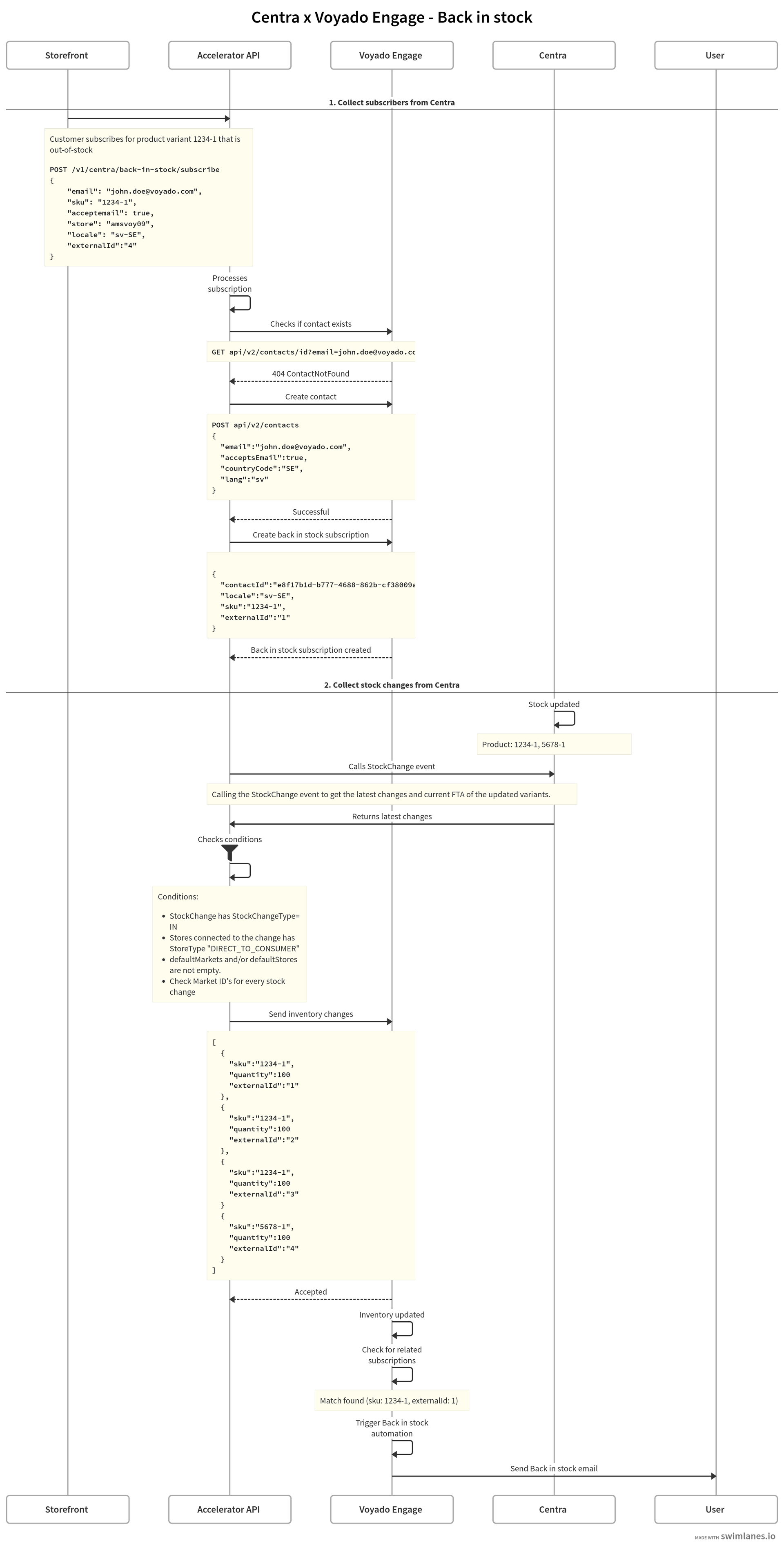
Here is the entire workflow as an image:
 ## Testing the Integration
Here are some ways to test the integration.
* Subscribe to a back-in-stock notification for a test product.
* Validate that the subscription has been registered on the user in Engage.
* Update stock levels in Centra for a test product SKU.
* Validate that the automation has been triggered and a notification email is sent upon stock update.
* Check Engage Administration > Integration log to confirm stock changes and email triggers are processed correctly.
## Testing the Integration
Here are some ways to test the integration.
* Subscribe to a back-in-stock notification for a test product.
* Validate that the subscription has been registered on the user in Engage.
* Update stock levels in Centra for a test product SKU.
* Validate that the automation has been triggered and a notification email is sent upon stock update.
* Check Engage Administration > Integration log to confirm stock changes and email triggers are processed correctly.