> ## Documentation Index
> Fetch the complete documentation index at: https://partner-integrations.voyado.com/llms.txt
> Use this file to discover all available pages before exploring further.
# Resend order and shipment confirmations
> Manually re-send an order confirmation or shipment confirmation to a customer directly from the Shopware order detail page.
When an order confirmation or shipment confirmation fails to reach a customer, you can trigger a resend without leaving the Shopware admin. The Voyado Engage app adds two action buttons to the order detail page that let you re-trigger either notification on demand.
This feature requires Voyado Engage app version 2.3.0 or higher. Both customer sync and order sync must be enabled in your integration configuration.
## Resend a notification
In the Shopware admin, go to **Orders** and open the order you want to act on.
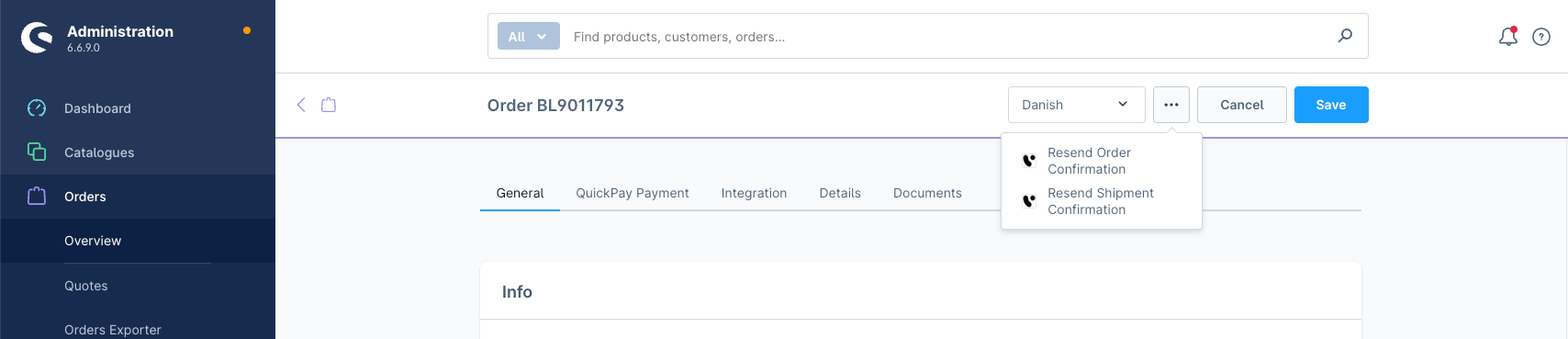
In the top-right corner of the order detail page, click the **⋯** (more actions) button.
Choose one of the two options:
* **Resend Order Confirmation** — re-sends the order confirmation and sets the order status in Engage to confirmed. If the order is already marked as completed in Shopware, the receipt is also re-sent to Engage.
* **Resend Shipment Confirmation** — re-sends the shipment confirmation, sets the order status in Engage to shipped, and always re-sends the receipt to Engage.
 ## What happens when you trigger an action
Voyado resolves the order and contact before sending the notification:
* **Contact** — Engage checks whether the order's customer email already exists as a contact. If it does, the contact record is updated with the latest data from the order. If it doesn't, a new contact is created (requires customer sync to be enabled).
* **Order** — Engage checks whether the order already exists.
* If it doesn't exist, a new order record is created with full order details before the notification is sent.
* If it exists and is linked to a contact, the order status is updated if needed, then the notification is sent.
* If it exists but has no linked contact, the order record is replaced and the notification is sent.
Triggering an action more than once for the same order is safe — existing records are updated rather than duplicated where possible.
## Troubleshooting
| Symptom | Likely cause |
| ------------------------------------------------------- | ----------------------------------------------------------------------------------------------------------------- |
| Action buttons are not visible on the order detail page | The installed app version is below 2.3.0. Update the app. |
| Action fails with a sync error | Customer sync or order sync is not enabled in the integration configuration. |
| Action fails with an address error | The order's shipping or billing address could not be resolved from the Shopware order data. |
| No response or empty result | The shop configuration was not found. Verify the shop is correctly configured in the Voyado integration settings. |
If you see an error referencing `support@voyado.com`, customer synchronization is not configured for this shop. Contact [Voyado support](mailto:support@voyado.com) to resolve this.
## What happens when you trigger an action
Voyado resolves the order and contact before sending the notification:
* **Contact** — Engage checks whether the order's customer email already exists as a contact. If it does, the contact record is updated with the latest data from the order. If it doesn't, a new contact is created (requires customer sync to be enabled).
* **Order** — Engage checks whether the order already exists.
* If it doesn't exist, a new order record is created with full order details before the notification is sent.
* If it exists and is linked to a contact, the order status is updated if needed, then the notification is sent.
* If it exists but has no linked contact, the order record is replaced and the notification is sent.
Triggering an action more than once for the same order is safe — existing records are updated rather than duplicated where possible.
## Troubleshooting
| Symptom | Likely cause |
| ------------------------------------------------------- | ----------------------------------------------------------------------------------------------------------------- |
| Action buttons are not visible on the order detail page | The installed app version is below 2.3.0. Update the app. |
| Action fails with a sync error | Customer sync or order sync is not enabled in the integration configuration. |
| Action fails with an address error | The order's shipping or billing address could not be resolved from the Shopware order data. |
| No response or empty result | The shop configuration was not found. Verify the shop is correctly configured in the Voyado integration settings. |
If you see an error referencing `support@voyado.com`, customer synchronization is not configured for this shop. Contact [Voyado support](mailto:support@voyado.com) to resolve this.