> ## Documentation Index
> Fetch the complete documentation index at: https://partner-integrations.voyado.com/llms.txt
> Use this file to discover all available pages before exploring further.
# Promotions and vouchers
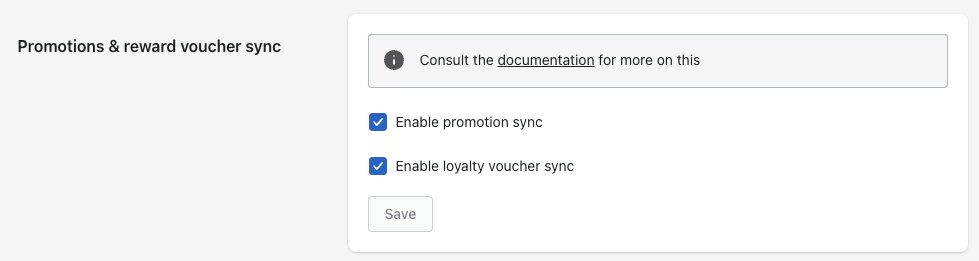
To enable the use of promotions (discounts) and vouchers in your Shopify POS app, the setup on the Shopify side has to be complete. During that setup you'll need to have selected the options below. The first enables promotions, and the second enables vouchers:
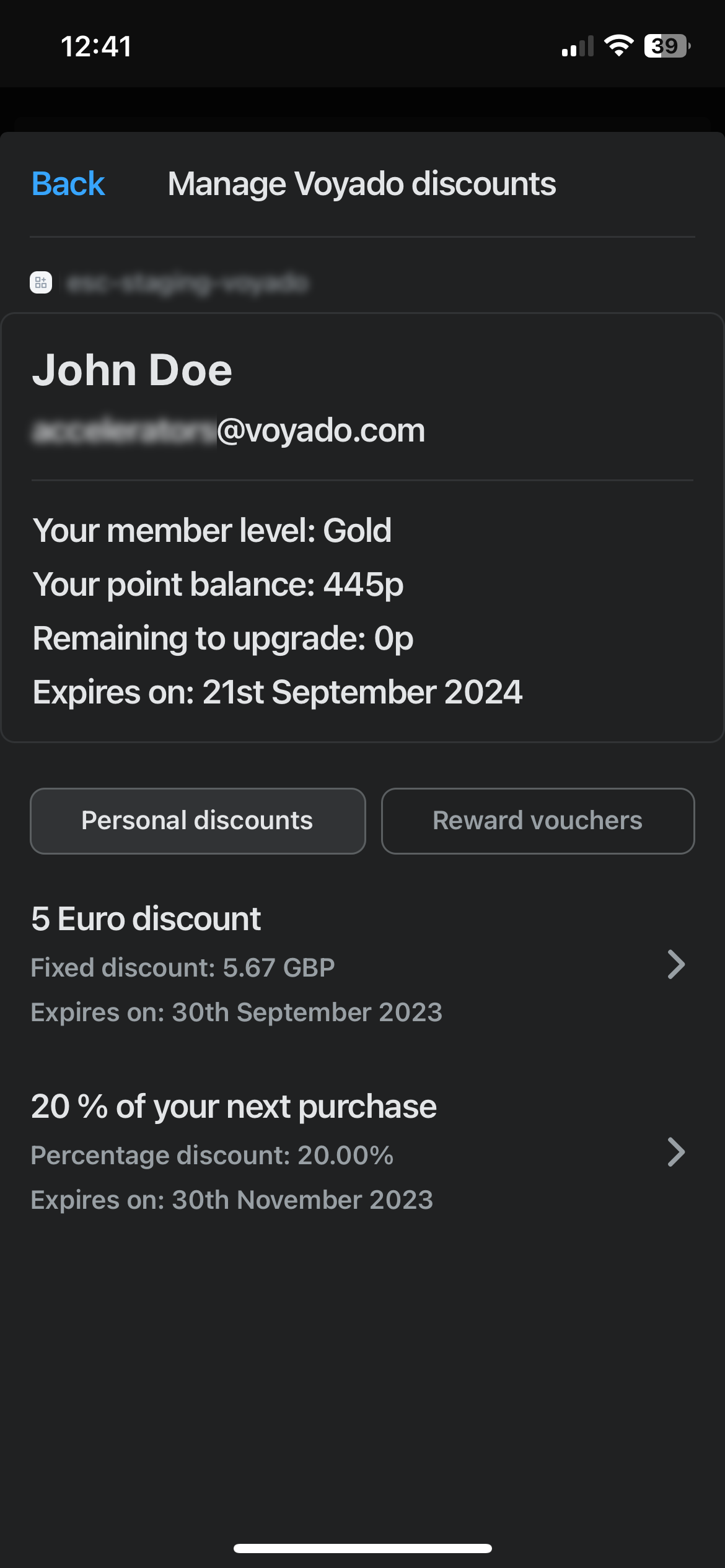
 You can now view a customer's loyalty information in the Shopify POS app. To do this, add a customer to the cart. When you then select the "Manage Voyado discounts" tile, and assuming you have enabled both promotions and vouchers during the setup in Shopify, you'll see two tabs:
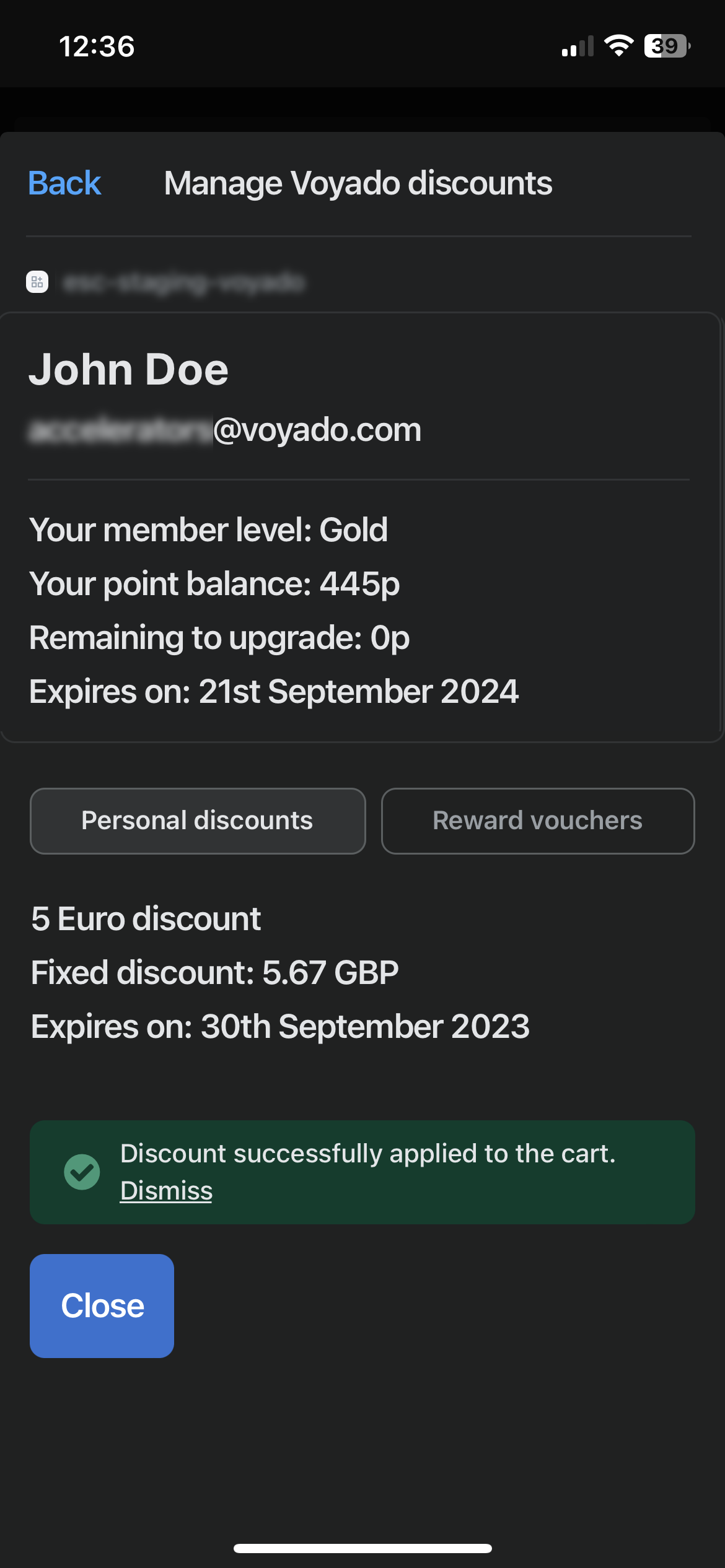
**Personal discounts:** Here you can see any discounts (promotions) that are available for that customer.
You can now view a customer's loyalty information in the Shopify POS app. To do this, add a customer to the cart. When you then select the "Manage Voyado discounts" tile, and assuming you have enabled both promotions and vouchers during the setup in Shopify, you'll see two tabs:
**Personal discounts:** Here you can see any discounts (promotions) that are available for that customer.
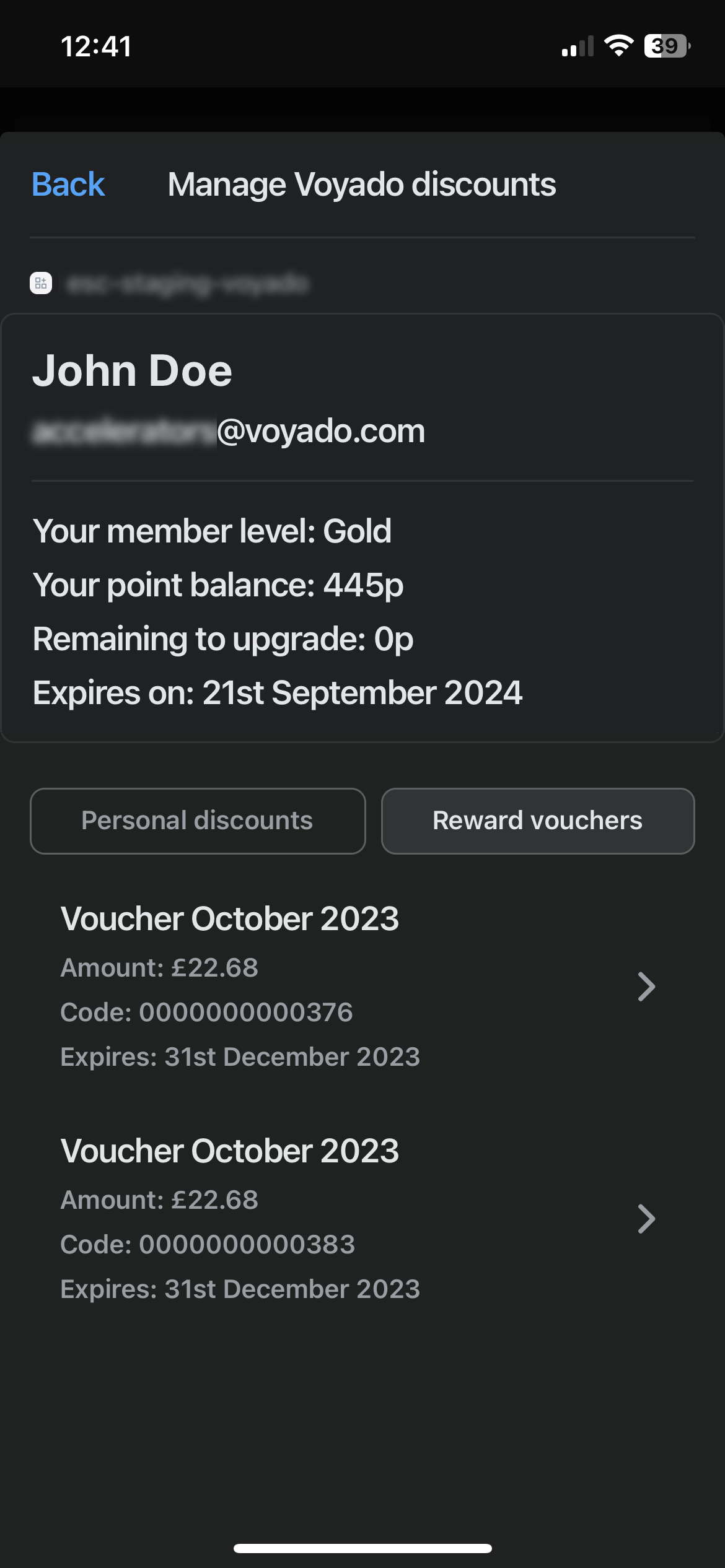
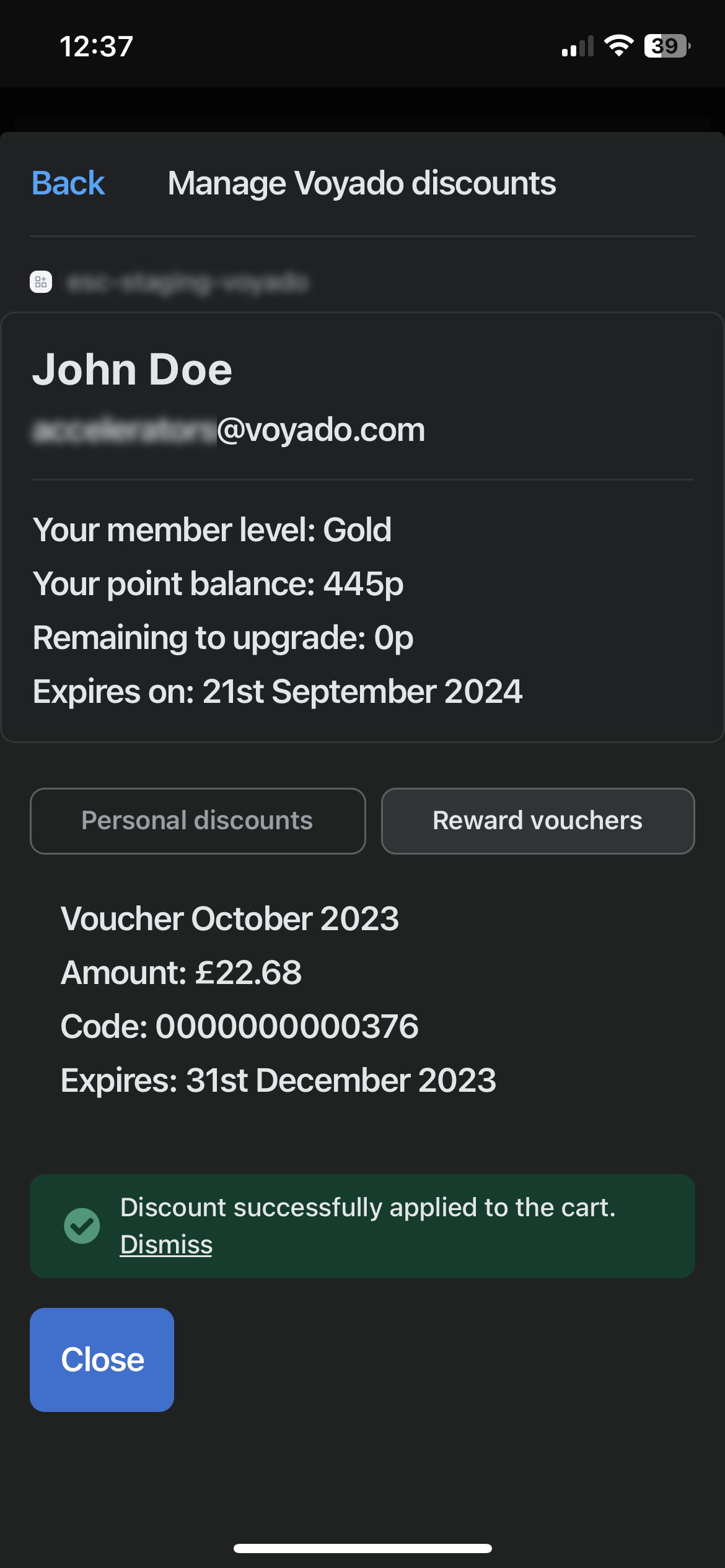
 **Reward vouchers:** Here are listed the vouchers available for that customer.
 ## Creating Personal discounts
A Personal discount is created in Engage as a multichannel promotion.
Under the "Promotions" side-menu in Engage, select "New Promotion" and then "Multichannel promotion".
Now choose either "Monetary discount" or "Discount in Percent" as the value type.
## Creating Personal discounts
A Personal discount is created in Engage as a multichannel promotion.
Under the "Promotions" side-menu in Engage, select "New Promotion" and then "Multichannel promotion".
Now choose either "Monetary discount" or "Discount in Percent" as the value type.
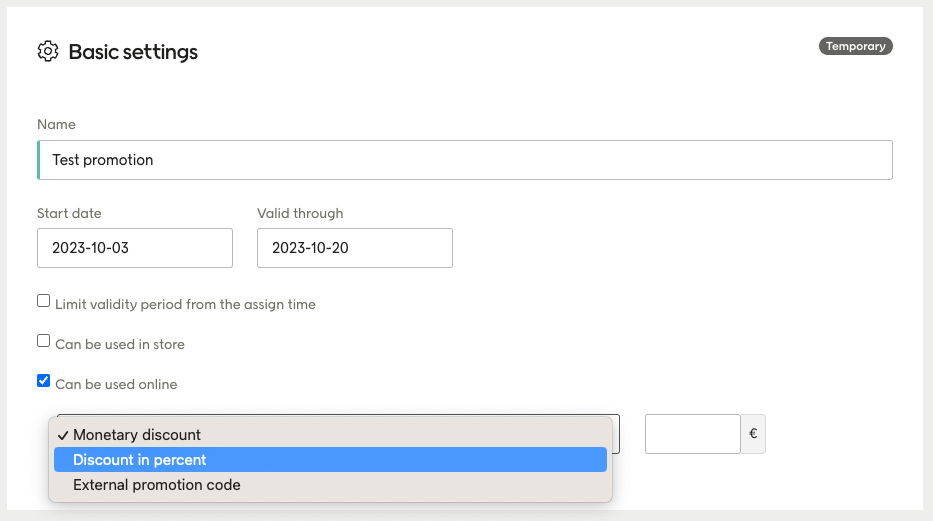 Don't pick "External promotion code" for a promotion that you intend to be used in the Shopify POS.
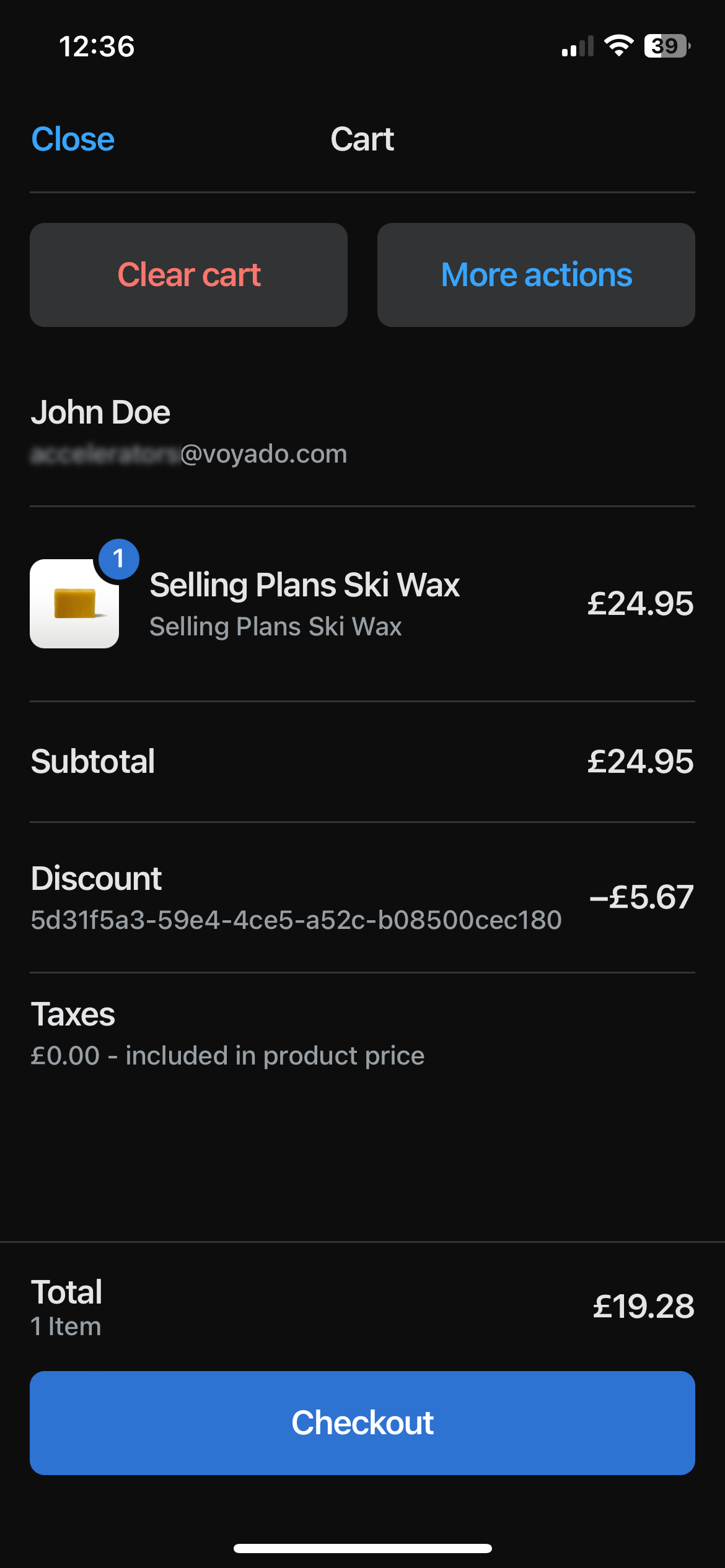
Now assign this promotion to your customers. When a customer with this promotion assigned is identified in the Shopify POS app, selecting the "Manage Voyado discounts" tile will generate the appropriate discount based on the promotion you just created in Engage, in the local currency. This discount can now be added to a purchase during checkout in the POS app.
Don't pick "External promotion code" for a promotion that you intend to be used in the Shopify POS.
Now assign this promotion to your customers. When a customer with this promotion assigned is identified in the Shopify POS app, selecting the "Manage Voyado discounts" tile will generate the appropriate discount based on the promotion you just created in Engage, in the local currency. This discount can now be added to a purchase during checkout in the POS app.
 Once the order is placed, the promotion will be redeemed in Engage.
 ## Creating Reward vouchers
In Engage, a contact's reward points can be converted to a loyalty voucher / reward voucher, which is an amount of money that can then be used for purchases.
This is done under **Promotions > New Promotion > Reward voucher**.
To learn how to convert points to vouchers, see here:
Any vouchers from Engage will be created as discounts in the Shopify POS app, in the local currency, when a customer is identified there.
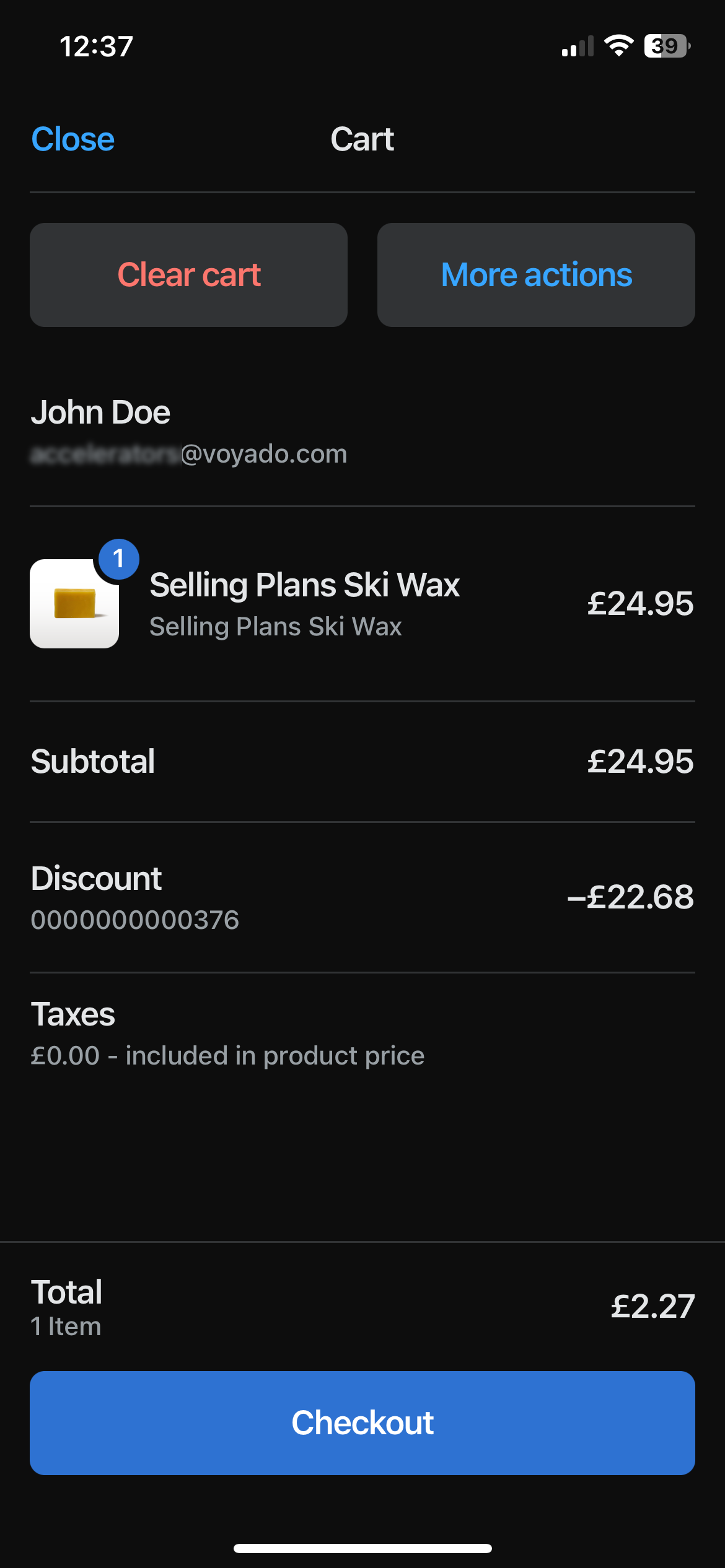
Apply the voucher by selecting it once the customer has an item in their cart.
## Creating Reward vouchers
In Engage, a contact's reward points can be converted to a loyalty voucher / reward voucher, which is an amount of money that can then be used for purchases.
This is done under **Promotions > New Promotion > Reward voucher**.
To learn how to convert points to vouchers, see here:
Any vouchers from Engage will be created as discounts in the Shopify POS app, in the local currency, when a customer is identified there.
Apply the voucher by selecting it once the customer has an item in their cart.
 Once the order is placed, the voucher will be redeemed in Engage.