

- Connect to the Engage API
- Sync and manage customer data
- Handle transactions
- Deliver digital receipts
- Set up personalized promotions and vouchers
- Migrate existing data
1. Basic requirements
To start building an integration with Engage, here’s what you need:- Base URL - Your Engage environment endpoint
- API Key - Your authentication key generated in Engage
- Source - A string identifying the system or integration sending the data (such as “ECOM”)
- StoreExternalId - A unique identifier per store, site, or market

Learn about the Engage API
2. Handling customers
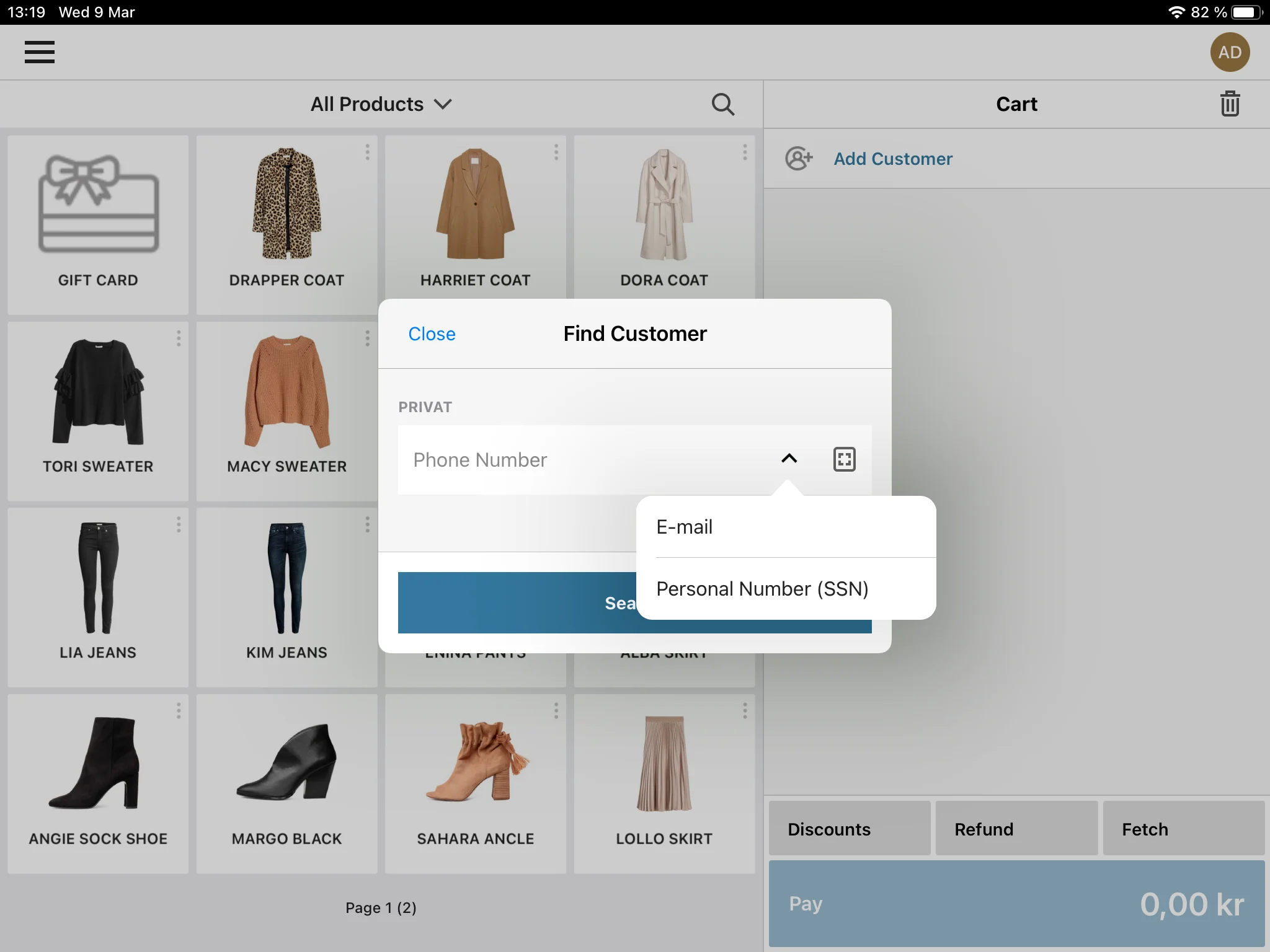
The flow begins with identifying the customer.2.1 Identifying a customer
FIrst check if the customer already exists in Engage. The default unique identifier for contacts in Engage is email but other options exist:- Mobile phone number
- Member number
- Personal identify number
See how to search for a contact in Engage
2.2 Registering a customer
If no match is found, you will need to create a new Engage contact for the customer. To keep it fast and easy at checkout, build your integration so that only one identifier (email or phone) is required from the customer to add them. Registering a new contact will starts Engage’s automation workflows (if one is set up).See how to create a contact in Engage
2.3 Data to include
When posting a contact’s data to Engage, always include the following in your payload:- Source: For example “ECOM”
- StoreExternalId: Reflects the customer’s market/shipping country
- Country: Set from address, site geo-location, or store settings
- Language: Based on site language or customer choice (ISO 639-1)
Learn about contact fields
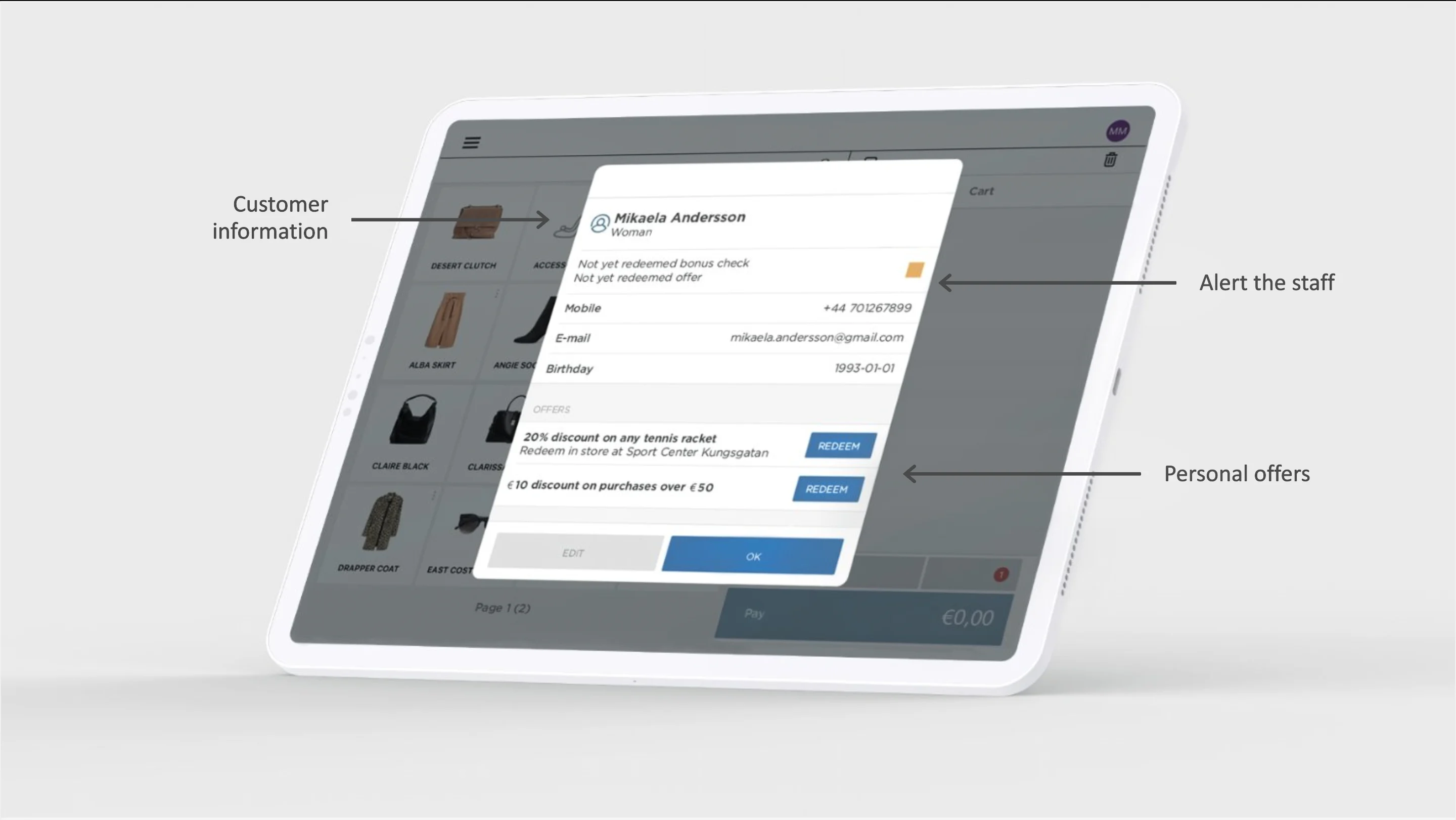
2.4 Displaying customer info
The Engage/contactoverview endpoint can be used fetch the customer’s full data profile (known as their enriched profile).
Learn about the contactoverview endpoint
Enriched profile data points
Enriched profile data points
- First name
- Last name
- Address
- Gender
- Birthday
- Communication preferences
- Loyalty level
- Points
- Available vouchers
- Available promotions
- Consents
2.5 Update customer profile
When a customer updates their data (for example name or address or marketing preferences), you’ll need to push that update to Engage.Learn about updating contacts
Only include the fields you want to change in your update payload. Empty values will in the update payload will overwrite the existing data that is stored in Engage.
3. Working with receipts
Engage uses receipts (the total data of a customer’s transactions) to track purchases and power customer segmentation, enabling personalized experiences and analytics.3.1 Registering purchases
Send each completed receipt from your POS to Engage.Learn about registering purchases
- Spread the discount value across all item lines
- Include
promotionIdorvoucherNumberif applicable
Learn about working with discounts
3.2 Local currency support
If your POS operates in a different currency than the customer’s group currency, include a currency conversion in your payload (as the attributeexchangeRateToGroupCurrency).
If your POS is unable to include a currency conversion rate in the transaction. then a conversion scheme to handle this can be set up in Engage.
Learn about fields in the transaction payload
3.3 Registering returns
When a return is made, you must send a return receipt containing the details of the returned products.Learn about returns
3.4 Sending digital receipts post-purchase
You can send digital receipts post-purchase from Engage, which include:- Customer details
- Order and item information
/orders endpoints:
The orders API endpoints
Learn about order actions
4. Personalized promotions in POS
You can use Engage’s segmentation and automation tools to assign individual promotions or vouchers, such as “10% off for Gold members” or “€10 Voucher“. Some important points about promotions (and vouchers):- Promotions are created in Engage and referenced in the e-com by an external ID
- It is the e-com that handles pricing rules and redemption logic
- It is Engage that handles personal assignments of the discount
Learn more about promotions
4.1 Welcome promotion at sign-up
If your loyalty program offers welcome promotions, customers often expect to receive and redeem such a promotion immediately, especially during an in-store purchase. To enable this, you can directly assign a personal promotion in Engage using the request:- Avoid delays caused by asynchronous automation flows
- Prevent queue build-up and customer frustration in physical stores.
- Ensure the promotion can be redeemed during the same transaction where the customer signs up
4.2 Creating promotion in POS
Create the promotion in the POS system first. For example:- Promotion name: Welcome 10%
- Discount logic: 10% off first purchase
- Promotion code: WELCOME10
4.3 Creating promotion in Engage
Now create a corresponding promotion in Engage for the welcome offer. This promotions references the POS promotion you just made through its external promotion code (externalId) which must match the POS promotion code / internal ID if the POS owns the price logic.
What Engage does here is:
- Controls the assignment
- Controls the validity period
- Connects the promotion to the contact
- Makes it available on the customer’s profile
4.4 In-store sign-up flow
Here is how the promotion is handles in the sign-up flow.1
Customer signs up in store
- Customer registers as a loyalty member in the POS
- POS either updates the customer in Engage or creates them there
2
POS assigns the welcome promotion
Immediately after successful sign-up, the POS must call:With:
- The customer identifier (
contactId) - The promotion identifier (
promotionId)
3
Promotion can now be redeemed in the same purchase
Immediately after successful purchase, the POS must call:With:
- The promotion assignment identifier (
assigmentId) - The redemption channel as “POS” (“redemptionChannel” : “POS”)
5. Assigning vouchers
Points are converted to vouchers in Engage and created as a personally assigned monetary discount in the POS. Engage handles the pricing rules and the POS then redeems the voucher using the Engage API.Learn about vouchers in Engage
6. Data migration (before go-live)
Before going live, you must migrate into Engage your:- Historical customer data
- Historical transaction data