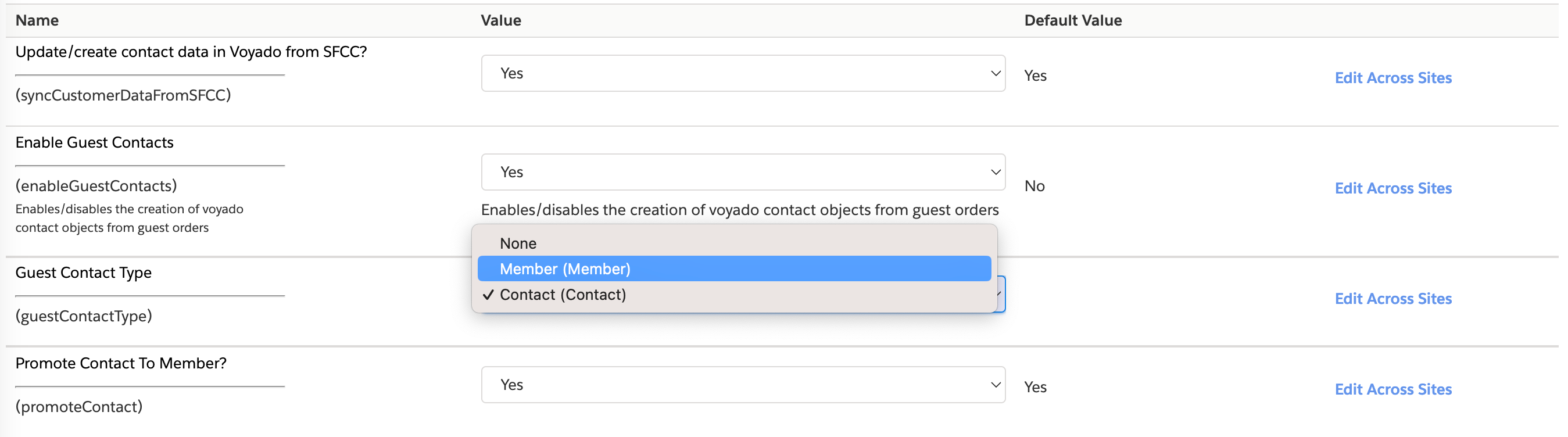
As mentioned, you can configure how to sync guest customers, either as “Member“ or “Contact“. This syncing is not done in real-time, but is scheduled to run every minute. If you want to make the syncing real-time, you can do this with some minor code adjustments.To find the syncing job, navigate to Administration / Operations / Jobs in SFCC and find and run the job named “Voyado - Process Receipts”.
The “Order confirmation” transactional email is supported by the integration. Other order statuses are not supported because SFCC does not hold the full information for an updated order. If you want to support other order statuses you’ll need to build a custom integration between Engage and the OMS / ERP platform you’re using.You can enable or disable the order confirmation email that’s sent from Engage:
This covers abandoned cart tracking and recovery, as well as product view tracking.
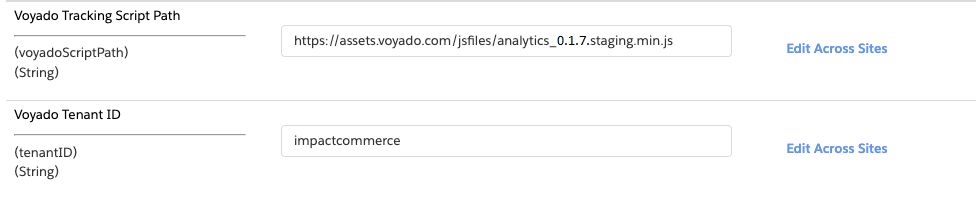
Web activity tracking as described below requires the SFCC native front-end. If you are a merchant using your own headless commerce solution, you’ll have to implement this functionality yourself.
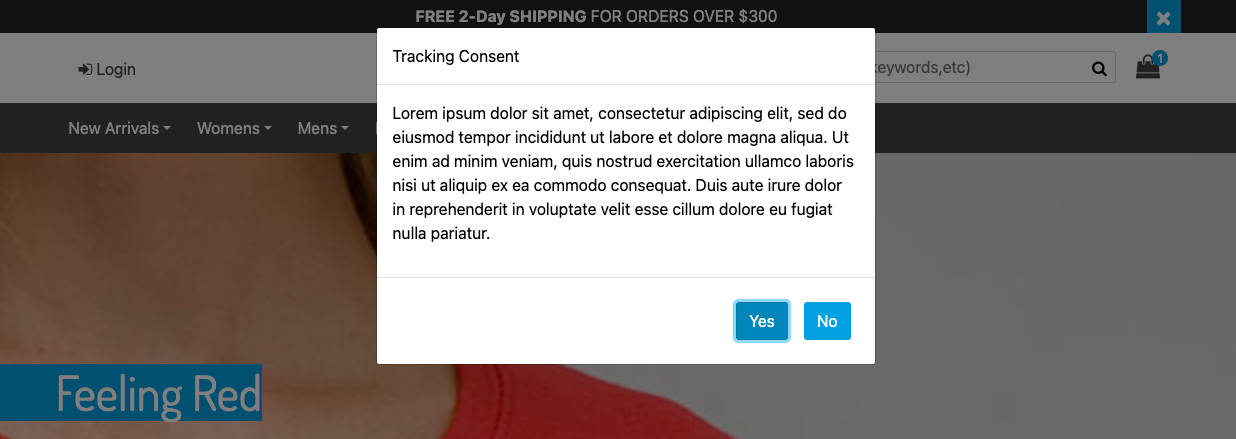
Tracking will only occur if the customer has consented to the “out of the box“ tracking consent requested in SFCC.
Tracking consent
Assuming tracking is active and the customer has consented to it, as soon as they enter the site the tracking script kicks in and starts tracking cart updates and product views.
On every cart update, the following is sent via the tracking script:
Cart reference
Cart URL
Locale
SKU
Quantity
As soon as the customer is identified, either via an email link or a login, the integration connects the cart reference to the identified contact. When the checkout is completed, the cartridge sends an empty cart to Engage to prevent sending out an email when the products are already purchased.You can enable and disable the abandoned cart functionality via the admin interface.
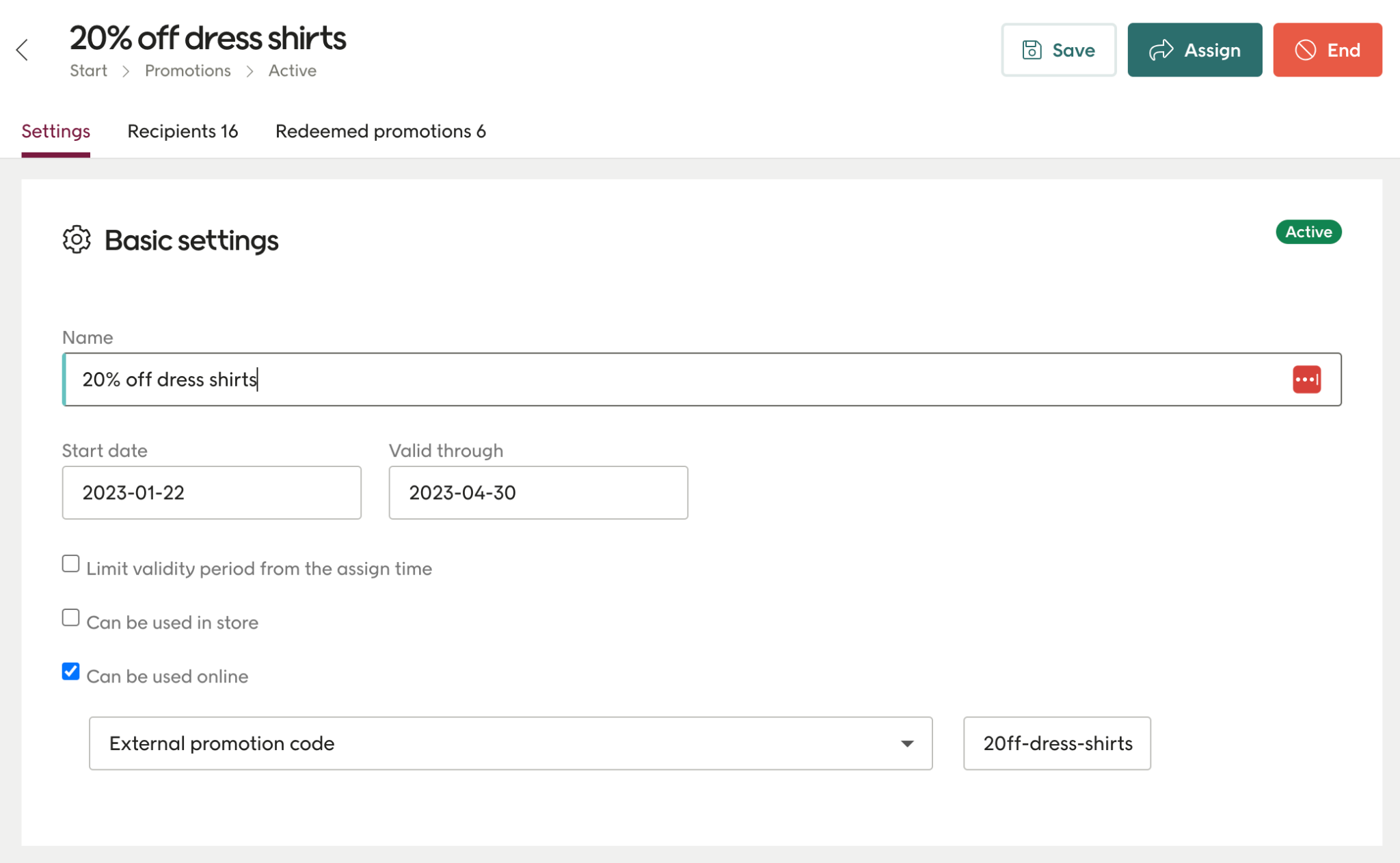
Personalized promotions must be configured in both Engage and Salesforce Commerce Cloud (SFCC). The SFCC promotion engine and Engage’s advanced segmenting are then used to distribute these promotions to the selected audience. To make this work, the Coupon Code for the promotion in SFCC needs to match the External promotion code in Engage.Here are the steps in setting up promotions:
1
Business Manager
In Business Manager navigate to Merchant tools > Online marketing > Coupons.
2
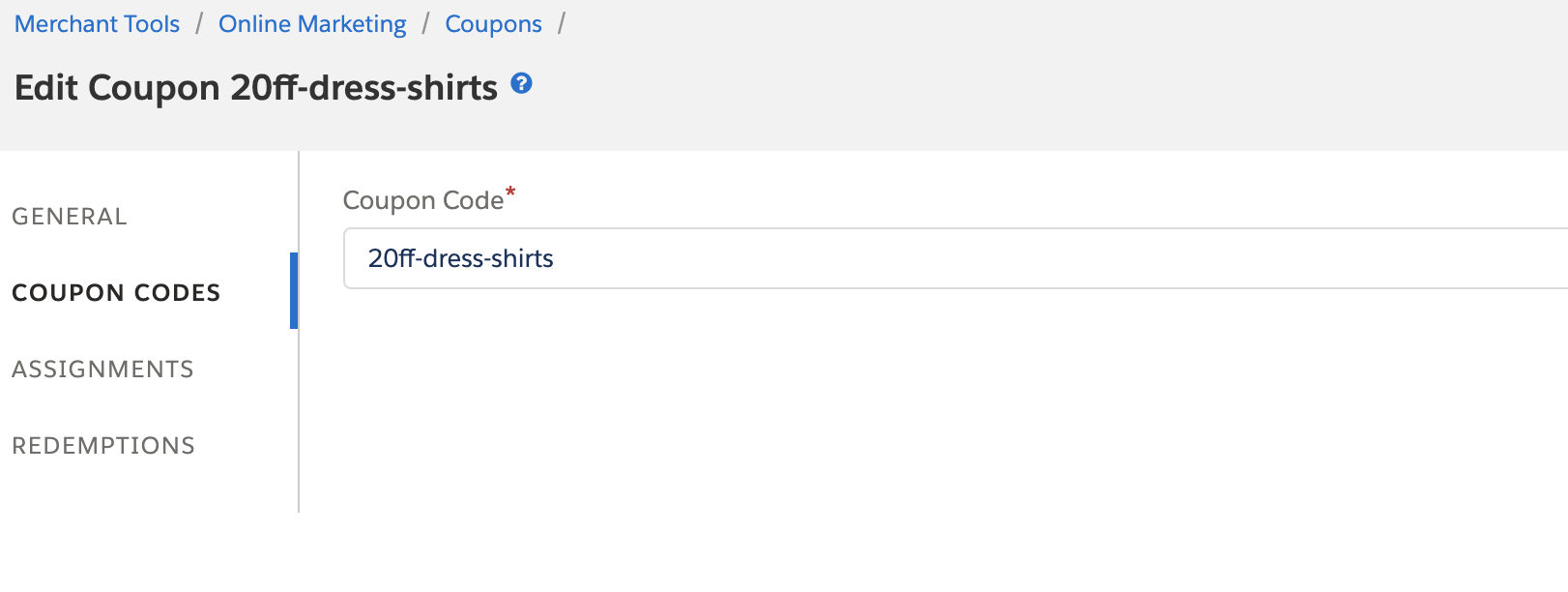
Copy coupon code
Open up the coupon configuration and copy the Coupon Code:
AAA
3
Promotion configuration
Open the promotion configuration in Engage.
4
Paste coupon code
Paste the Coupon Code from SFCC into the “External Promotion Code” field in the Basic Settings tab.
AAA
5
Save
Click “Save”.
6
Save
Click “Save” and you’re done.
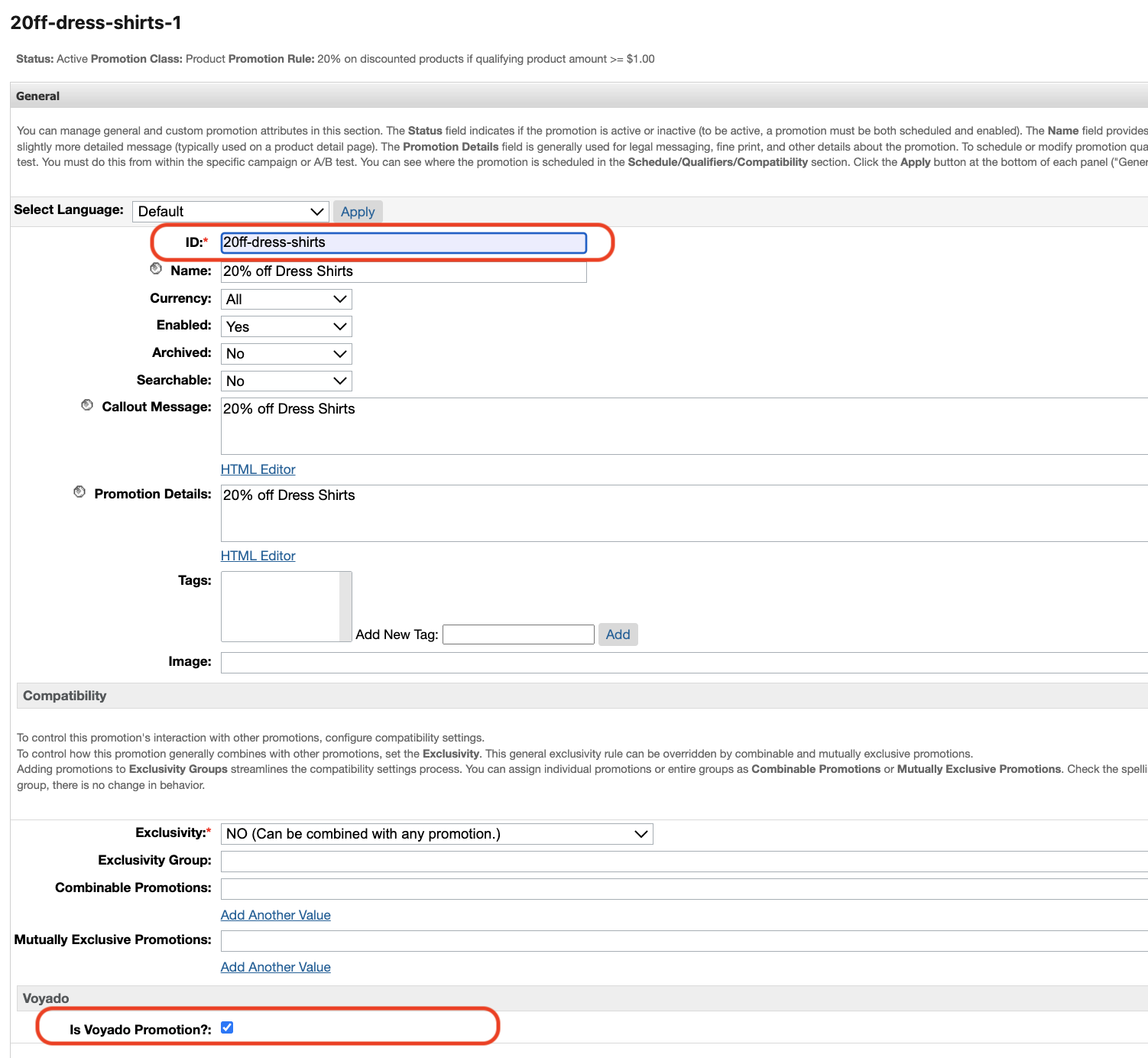
SFCC will only show a promotion on the cart page if it has been marked as a Voyado promotion. To do this:
In Business Manager navigate to Merchant tools > Online marketing > Promotions.
Select the promotion by clicking the promotion ID in the list.
Tick the “Is Voyado Promotion?” checkbox in the Voyado attribute section.
Mark as Voyado promotion
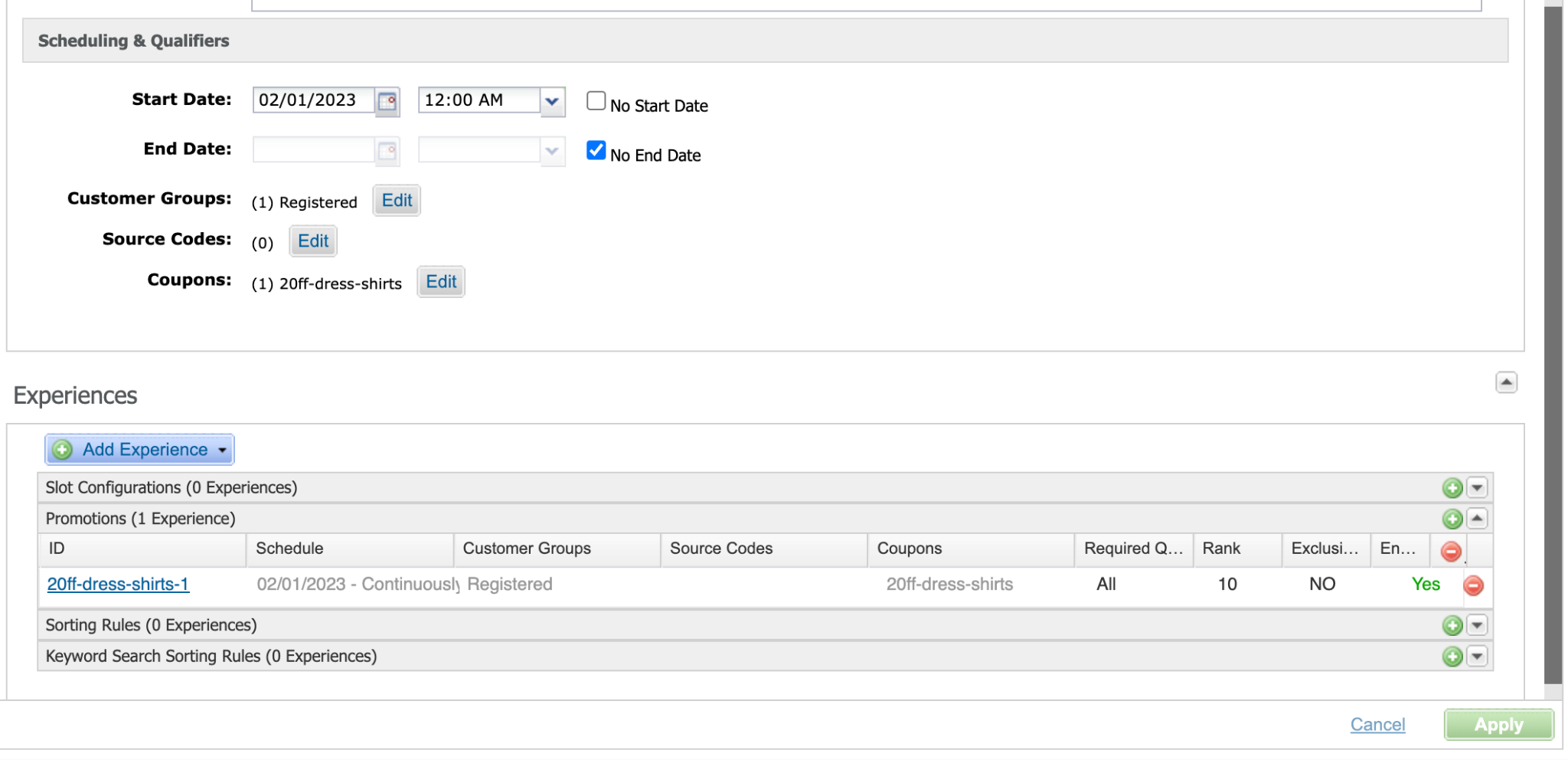
After you have created the promotion, you must create a new campaign and attach it to the campaign.When the campaign has been created, the next step is to create a coupon code and attach the campaign to that code. In order to show the products associated with the assigned promotions, the promotion ID needs to match the coupon code used when activating the promotion.In campaign configuration, as a final step, set the coupon code as one of the required promotion qualifiers.If the promotion name in SFCC does not match the coupon code, the promotion will still work. However then SFCC will not show products associated with the promotion in the Loyalty info page in the Account section.
Make sure that you don’t have any Customer Groups attached to the campaign. If you do, then the discount will be eligible for all users within that Customer Group.
Input the soft identification (soft login) key, provided by your Voyado team, to start identifying customers who reach your storefront by an email sendout link. This functionality allow you to display active promotions, point balance and other loyalty data for the customer.
Soft identification
Assistant
Responses are generated using AI and may contain mistakes.