

Promotions
When the extension is implemented you’ll be able to assign promotions (personal discounts) in Engage and enable the checkout staff to apply them for customers at the checkout. Once the discount has been applied and the purchase made, the extension will automatically redeem the promotion in Engage so that it can’t be used again. Adobe Commerce is the master of price logic, which means that discounts should always be created first in the Adobe Commerce admin under the section Cart price rule. Once created with the correct settings (explained below), a promotion will automatically be created as a draft in Engage with the correct reference code already inserted.Promotion cart price rule
This example demonstrates how to create a 20% off welcome offer.- Navigate to Marketing > Cart price rules in Adobe Commerce admin.
- Select Add new rule.
- Name the price rule in the field Rule name and set it as active.

Creating price rule
- Choose which websites your price rule is valid on.
- Choose your customer groups (several or all of them can be chosen).

Adding customer group
- Choose the coupon to be a Specific coupon and enter the coupon code. The coupon code is the key reference between the promotion that was created in Engage and the Cart price rule in Adobe Commerce. This coupon code is what is sent to the customers by email or SMS.

Adding coupon code
- Assuming the extension is implemented, a dropdown appears called “Voyado type”. Here, choose Promotion.
- Set the rules for the discount. A promotion in Engage can be connected to the four different rules below:
- Percent of product price discount
- Fixed amount discount
- Fixed amount discount for whole cart
- Buy X get Y for free (discount amount is Y)

Adding discount
- After setting up the rules, hit Save and the promotion will be created in Engage as a draft. From there you can choose to assign the discount to your customer segment either manually or through Engage’s marketing automation platform.
Online and offline promotions
A promotion is automatically created in Engage when creating a cart price rule in Adobe Commerce, and such a promotion can also be set to be valid in-store (POS). Follow the steps below to enable a promotion to be used in-store:- In Engage, navigate to the promotion that was created by Adobe Commerce.
- Tick the box “Can be used in store”.
- Choose the type of promotion: Monetary discount, Discount in percent, or External promotion code.
- Enter the value of the discount.
Using promotion at checkout
The extension has out-of-the-box support for manually inputting the customer’s promotion code, which they received by email or SMS, into the discount code field in checkout. This will automatically apply the discount to the customer’s basket. When the purchase in finalized, the extension will redeem the voucher in Engage so that it cannot be used again in other channels.Redeeming a promotion
This setting allows you to decide at what stage in a purchase the promotion is redeemed in Engage.
Redeeming promotion
- Redeem when the order has been fulfilled (Invoice)
- Redeem at the order confirmation stage (Order)
Reward vouchers
As well as promotions, the extension also allows a customer to use a reward voucher as a discount at checkout. A reward voucher is a monetary discount of a fixed amount that was created from points that were earned by the customer. Reward vouchers are also connected to a cart price rule in Adobe Commerce but of a different type than promotions. You need to create ONE master template to be connected to the vouchers in Engage. Once the extension has identified that specific customer in Engage, it will automatically enable the usage of their available vouchers.Voucher cart price rule
You need only create this cart price rule once and then have it active as a master template. The extension handles the rest. Here’s how you do it:- Navigate to Marketing and then Cart price rules in the Adobe Commerce admin view.
- Choose Add new rule.
- Name the price rule in the Rule name field and set it as “Active”.
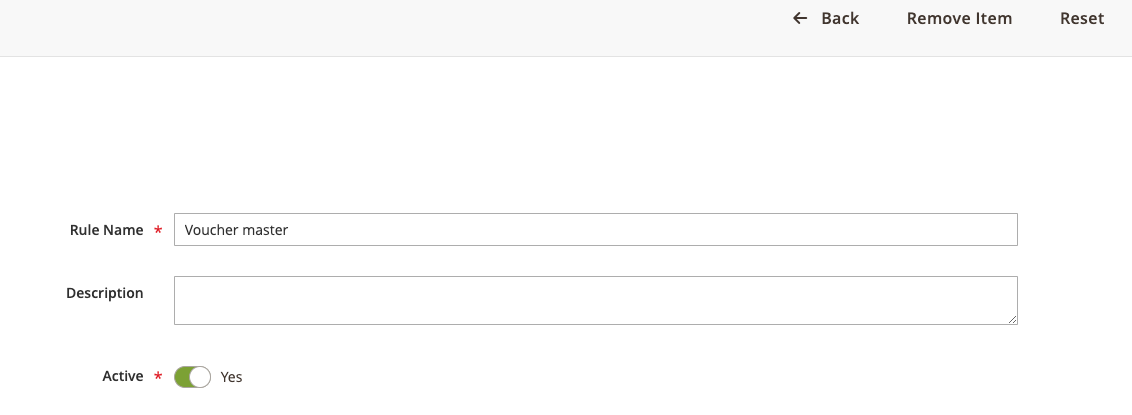
Rule name
- Set the coupon to be a Specific coupon and tick the box Use Auto Generation.

Coupon type
- Set “Uses per coupon” to “1”.
- Set “Voyado type” to Voucher.
- Under “Actions” select “Apply to Voyado voucher” and save the cart price rule.
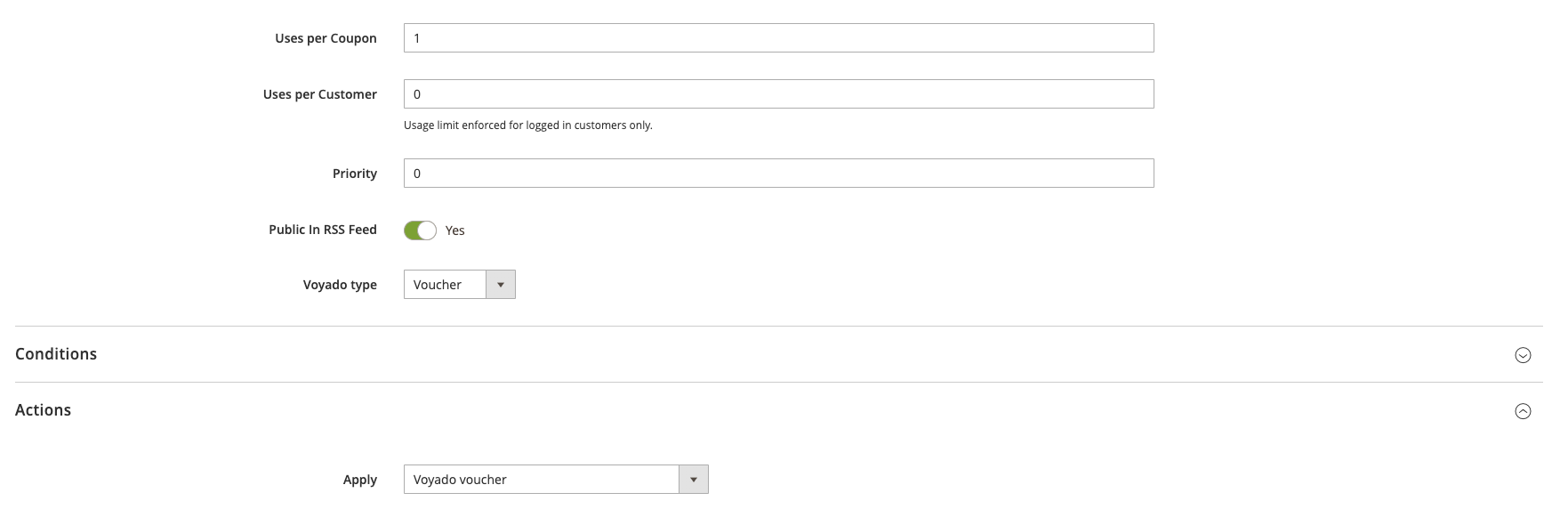
Coupon configuration
Using voucher at checkout
The extension supports manually inputting the voucher number, which has been communicated to the customer by email or SMS, into the discount code field at checkout. This will automatically apply the monetary voucher value as a discount to their basket. Once the purchase in finalized, the extension will redeem the voucher in Engage so that it can’t be used in other channels. As for promotions, if you want to present all available reward vouchers to the customer, allowing them to choose the one to use at checkout, you will need additional front-end development.Redeeming reward vouchers
This setting allows you to decide at what stage in a purchase a promotion or reward voucher is redeemed in Engage.
Redemption settings
- Redeem when the order has been fulfilled (“Invoice”)
- Redeem at the order confirmation stage (“Order”)