

1 - Install the app
In Shopify Admin, go to Apps → Shopify App Store.- Search for Voyado: AI Marketing & Loyalty.
- Click Add app and complete the installation.
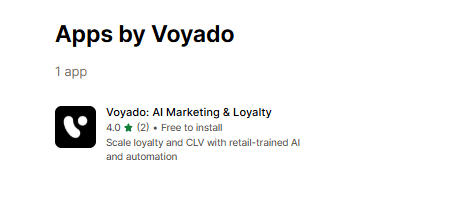
In the Shopify app store
You already have an Engage account
You already have an Engage account
- In the app’s first screen, choose I already have an account.
- Voyado might need to enable Shopify support for you. Contact your Voyado team.
- When that is done, proceed to step 2.
You don't yet have an Engage account
You don't yet have an Engage account
- In the app onboarding, fill in Company name and Company number (or equivalent).
- Hit Submit. Voyado will now contact you to create the account.
- Once your Engage account is ready, re-open the app and select I already have an account.
- Now proceed to step 2.
2 - Connect Shopify to Engage
In Shopify, open Voyado: AI Marketing & Loyalty → Settings.Voyado API Domain
Under Engage account connection, fill in Voyado API Domain:- Production:
https://[tenant].voyado.com - Staging:
https://[tenant].staging.voyado.com
[tenant] with your Engage tenant name.
Voyado API Key
Generate this in Config Hub inside your Engage environment (API key for the Shopify app).- Click Connect.
- Verify that a confirmation panel appears showing the connected Engage URL.
Changing environment
If you need to change which Engage environment your Shopify app is connected to, you can:- Go to Settings and then Disconnect
- Enter a new API Domain and API Key
- Press Connect again
3 - Map countries to stores
Now you will map your countries in Shopify to stores in Engage. The store -> country mapping determines which Engage store that each Shopify customer and order belongs to. This is critical for segmentation and reporting. To do this:- In Shopify, open Voyado: AI Marketing & Loyalty → Settings → Store to country mapping.
- Click Add Mapping.
- For Mapping type, choose Shipping country. (The alternative, Shopify POS Location, maps POS locations instead.)
- For Voyado Store, pick the Engage store (type
ECOMM) which will handle that shipping country. - For Shipping Country, select the corresponding country from Shopify.
- Repeat these steps for each market you sell to.
- On one of your mappings, tick Rest of world fallback. This catches customers whose shipping country is missing, or is not mapped to an Engage store.
Only one mapping can be the fallback. Ticking Rest of world fallback on a second mapping moves the flag rather than adding another.Each Engage store can be mapped to several shipping countries, but each shipping country can only be mapped to one Engage store.
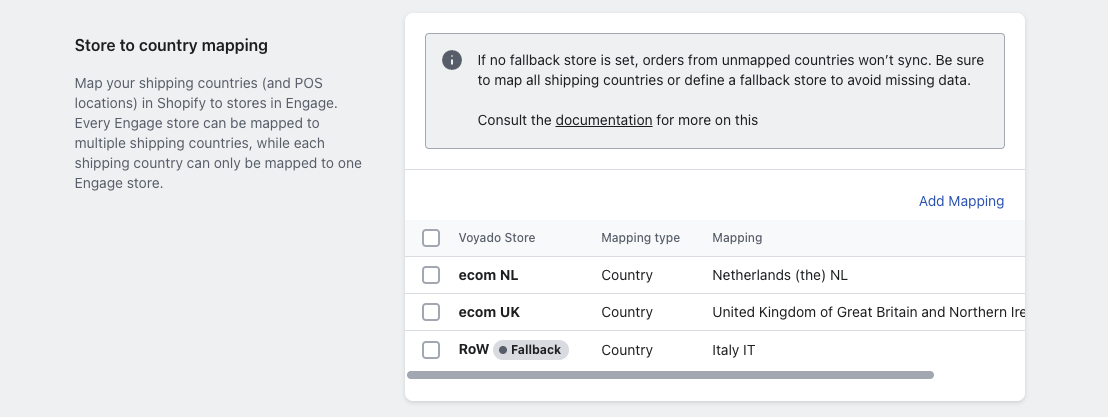
Store to country mapping
4 - Contact synchronization
Now you will determine how customers from Shopify are created as contacts in Engage. Open Voyado: AI Marketing & Loyalty → Settings → Contact synchronization in the app.Identification method
Pick Customer identification method:- Identify by email only (recommended) - lookups only by email (this is unique in Engage).
- Email first, then phone number - only if you’re okay with the risk of non-unique phone numbers.
- Phone number first, then email - the least recommended option.
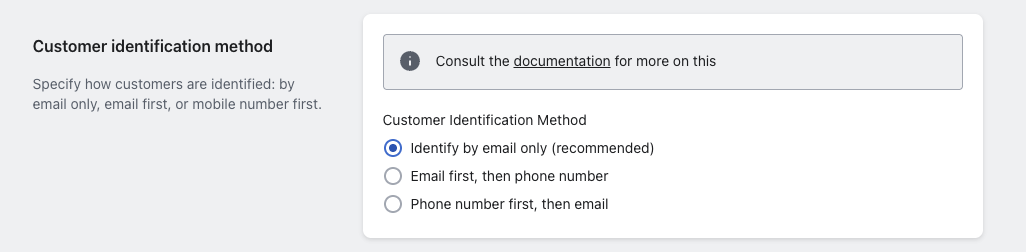
Customer identification method
Contact type
Choose Customer Contact Type:- Create everyone as Member (recommended) - this means all Shopify customers will be stored as Members in Engage.
- Both Contact and Member - uses “Member” for account holders and “Contact” for guest customers and newsletter subscribers.

Customer contact type
5 - Orders to receipts
This determines when orders in Shopify will be sent to Engage to become transactions / receipts. Do this:- In the Voyado app, go to Settings → Receipt sync stage.
- Choose when an order should be stored as a Receipt in Engage, either:
- Order unfulfilled
- Order fulfilled.

Receipt sync stage
6 - Order notifications
This determines how transactional emails are sent from Engage.- In Engage, prepare your automation workflows and email templates for:
- Order confirmation
- Order shipped / partially shipped
- Order cancelled
- Order refunded
- In Shopify, disable Shopify’s native transactional emails so customers don’t get duplicates. This requires Shopify Plus, and “Order confirmation” must be disabled by Shopify support. Engage can send the emails on any plan, but without Plus you cannot switch Shopify’s off, so duplicates are unavoidable.
- In the Voyado app Settings, find Order notifications and press Enable, so Shopify events trigger Engage automations with mapped order data.

Order notifications
7 - Back in stock sync
This keeps the inventory levels synced from Shopify to Engage, allowing back-in-stock functionality to work.Prerequisites
Before you start configuring this in Shopify, make sure the following are in place in Engage:- Product feed connected and active - Your Shopify product feed must be imported into Engage and updating regularly.
- Back in stock module enabled - The Back-in-Stock feature must be activated in the Engage tenant.
- Back in stock email/SMS template ready - There is at least one template (usually email) that can be used for the notification.
- All relevant products exist in the feed - If a product isn’t in the feed, Voyado can’t send Back-in-Stock notifications for it.
If any of these are missing, it’s vital that you fix them first (this is usually done together with your Voyado CSM or implementation team).
Inventory sync
Do this in the Shopify app:- In Shopify Admin, go to Apps → Voyado: AI Marketing & Loyalty.
- Open the app and go to Settings.
- Find Inventory sync for back-in-stock notifications and press Enable.
- Make sure the locations that handle online orders are included in the stock levels that are synced (meaning, the same locations Shopify uses for your online store).

Back in stock inventory sync
8 - Soft ID Detect App Embed
To enable this in Shopify:- In Shopify Admin, go to Apps → Voyado: AI Marketing & Loyalty.
- Click View app embed
- In the App Embed view, enable the toggle:
- Soft ID Detect App Embed
- Click Save in the top right corner.
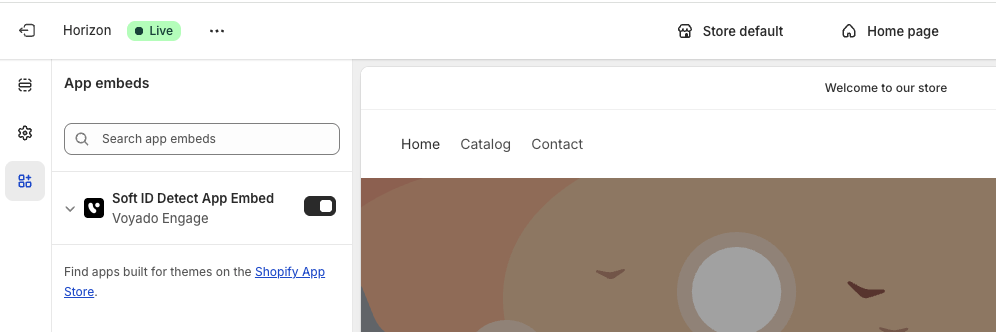
Soft ID Detect App Embed
9 - Soft ID decrypt key
Here you’ll configure the soft identification decrypt key. This key is required for Shopify to decrypt the identifier coming from Engage-generated email links.- Login to Voyado Engage.
- Go to Administration -> Configure Engage
- Open Soft identification section
- Copy the Encryption key (for the correct environment, usually production)
- Go back to Shopify admin -> Apps -> Voyado: AI Marketing & Loyalty
- Paste the key into Soft identification decrypt key

Soft identification decrypt key*
10 - Web pixel tracking
Web pixel tracking is used in abandoned cart, abandoned browse and products of interest. Before you start configuring this in Shopify, make sure the following are in place in Engage:- Your Product feed must be imported into Engage and updated regularly
- The Soft ID Detect App Embed must be active (see step 8 above for details)
- In Shopify, open Voyado: AI Marketing & Loyalty → Settings → Web pixel tracking.
- Tick Enable cart tracking for abandoned cart flows.
- Tick Enable identification of customers by email at checkout.
- Tick Enable product view tracking for products of interest / abandoned browse.
- Under In this Engage environment, confirm that the selected environment (Production or Staging) matches your Engage API domain.
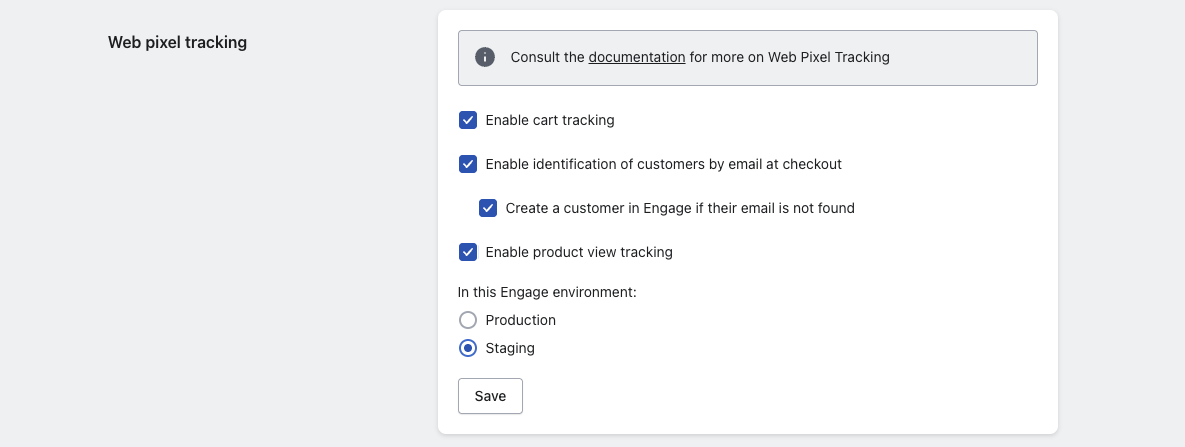
Web pixel tracking
11 - Loyalty & promotions
Now you will decide how loyalty and promotions are shown in the storefront by configuring theme blocks and checkout appearance.App theme block
- In Shopify Admin, open Voyado: AI Marketing & Loyalty and select Customize theme in the app.
- In the Theme Editor, select Add section to add a new section if you need one, then Add block on the section where you want the block.
- In the popup, choose Voyado — it may be under the Apps tab. Drag the block to the position you want.
- Now save the theme.
Vouchers & promotions
In Shopify:- Go to Voyado: AI Marketing & Loyalty → Settings → Promotions & reward voucher sync
- Tick Enable promotion sync (for multichannel promotions from Engage)
- Tick Enable loyalty voucher sync (for reward vouchers from Engage)
- Under Combinations, choose whether a voucher can be combined with:
- Product Discounts
- Order Discounts
- Shipping Discounts
- Set up Reward vouchers (from points) as needed.
- For promotions, make sure the External promotion code exactly matches a discount code in Shopify

Learn about vouchers in Engage
Learn about promotions in Engage
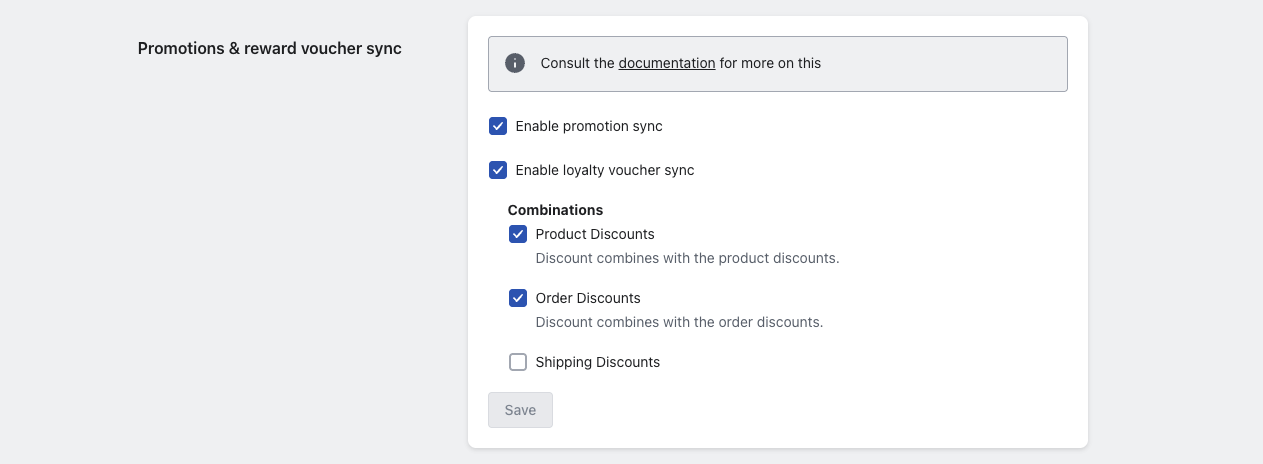
Promotions & reward voucher sync
Loyalty checkout extension
If you’re on Shopify Plus:- Go to Settings → Checkout → Customize.
- Add the Loyalty Checkout Extension (usually near the discount code field).
- Configure whether to require login in order to show offers.
- Configure label overrides (optional).
- Configure whether you show promotions, vouchers, or both (depends on which sync toggles are on).
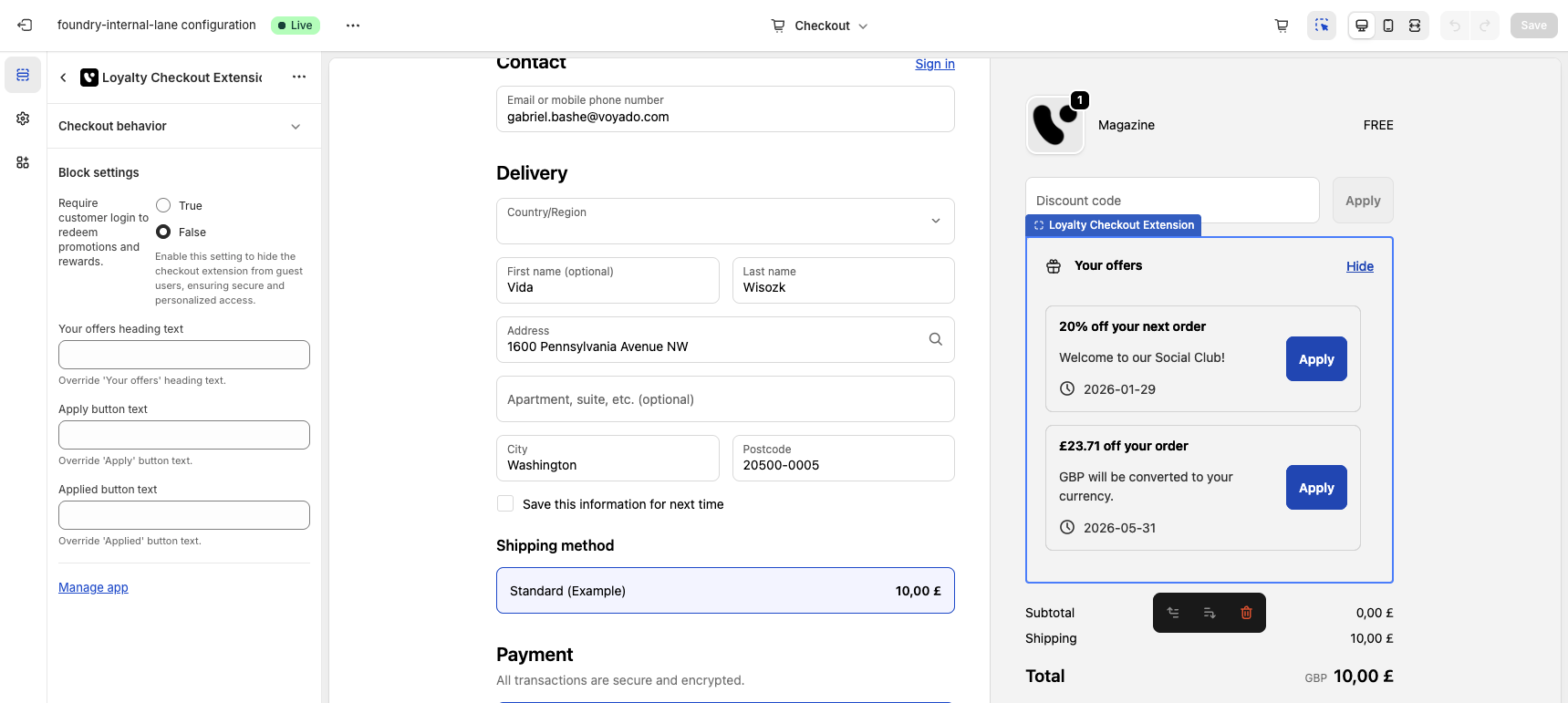
Loyalty Checkout Extension
12 - Data import
In this step you will be importing existing customers and orders. If you’re onboarding an existing Shopify store, run these imports so that Engage starts with the full customer history. In Shopify, open Voyado: AI Marketing & Loyalty app → Data Import.Import customers
- Tick Import customer data and click Submit.
- All Shopify customers (including Shopify POS) are created in Engage if they don’t exist.
- If they do exist, the app just fetches their
contactIdand stores it in Shopify for future linking.
Import orders
- Tick Import order data. Start date and End date fields appear — set the range of orders you want to migrate.
- Click Submit to import orders.
- Orders can only be imported when their customer already exists in Engage. If you tick both boxes, the app handles this for you: customer data is always processed before order data.
Both imports are processed in the background, so you don’t need to keep the page open.
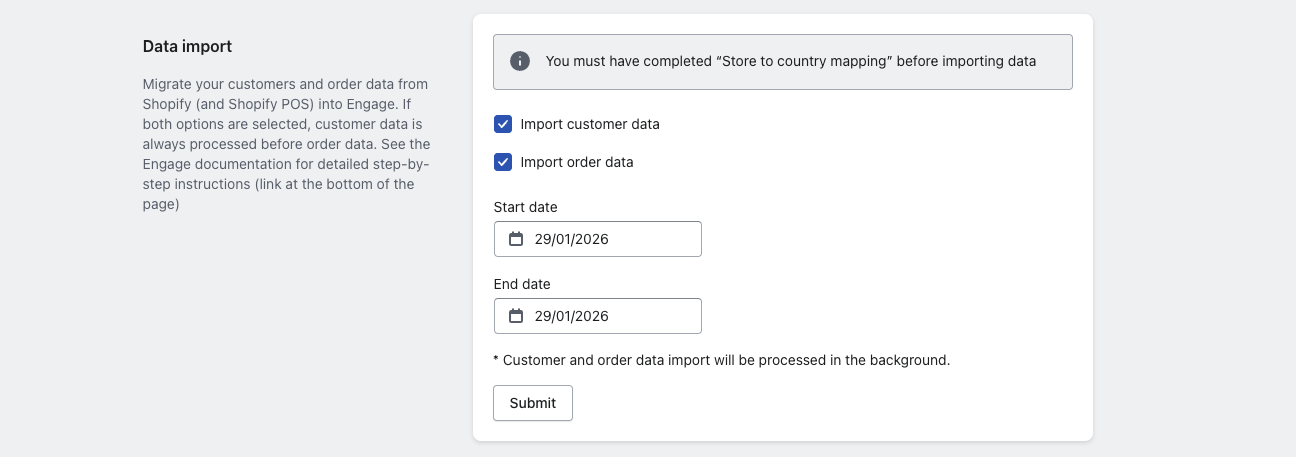
Data import
13 - Attribute mapping
The app maps a set of core customer fields to Engage automatically. You can also map any Shopify customer metafield to a custom attribute in Engage.- In the Voyado app, go to App Settings → Attribute Mapping.
- Review the Locked Mappings, which are pre-configured and can’t be changed.
- Under Custom Mappings, add your own mappings for anything else you track.

See the full attribute mapping reference
14 - Headless API keys
Only needed if you are running Shopify headless, or otherwise calling the app’s APIs directly. The key authenticates requests to the loyalty API and the back-in-stock endpoints.- In the Voyado app, go to Settings → Headless api keys.
- Select Add api key.
- Store the generated key somewhere safe — it is used as a Bearer token in the
Authorizationheader.
15 - Marketing preference sync
Two separate settings control how marketing preferences move between Shopify and Engage. Both are off by default.- In the Voyado app, go to Settings.
- Synchronize marketing preferences — tick Enable to sync email and SMS preferences between Shopify and Engage. A Webhook URL and an Encryption key field appear once enabled; see Webhooks for preferences for what to do with them.
- Synchronize all marketing preference changes from Shopify orders (specified in checkout) to Engage — tick Enable only if your Shopify checkout has Email Marketing options set to Preselected.