

Contact types
Shopify New Customer Accounts syncs all Shopify customers to themember contact type in Customer Engagement.

See a full overview of the New Customer Accounts
Unidentified contacts
It’s possible for a customer to be created in Shopify if an unidentified user starts a checkout but don’t complete it. This will result in a contact being created in Customer Engagement who lacks vital information such as email or mobile number. This, almost always, is bad. To avoid this, deselect “Send abandoned checkout emails automatically” which you’ll find under Settings > Checkout > Abandoned checkout emails in your Shopify admin.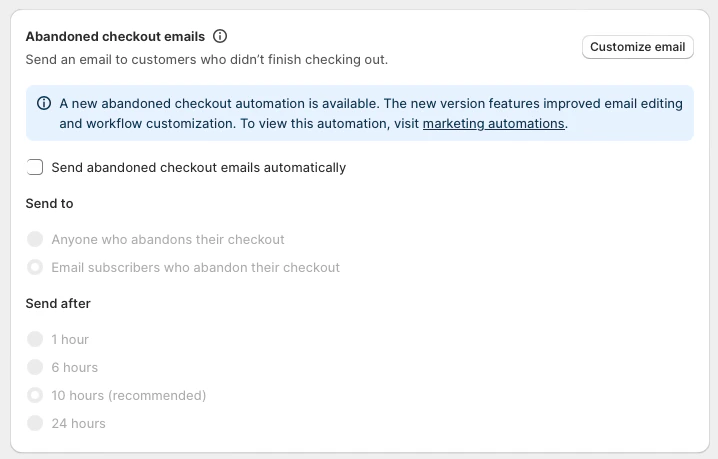
Abandoned checkout emails
Contact types and loyalty
When using loyalty with reward points, your contact types determine how those points are collected (or not collected).- If you’ve chosen to make everyone contact type “Member” then all your customers can collect points in Customer Engagement.
- If you’ve chosen to use both “Member” and “Contact” then only Members can collect points in Customer Engagement.
Multi-market support
If you have several Shopify stores for each of your markets, you can install the Customer Engagement app for each store and connect each Shopify store to a single store in Customer Engagement. If however you have one Shopify store with several markets set up, you can map each market to a different store in Customer Engagement.Read more about mapping stores to countries
Preferences / Accepts email
The Shopify app sets the Accepts email flag / preference at two different times: At customer creation: When a customer is created in Customer Engagement, the Accepts email flag is set based on what the customer chose to do. For example, if they sign up for My Pages without setting any consent, Accepts email will be set to “false” in Customer Engagement, since the customer hasn’t opted into marketing. But if the customer opts in for the newsletter, the Accepts email flag will be set to “true” in Customer Engagement, since they have now opted into marketing. At checkout: If the customer opts in during checkout in Shopify, that opt-in flag will be sent to Customer Engagement and used to update the Accepts email preference.Newsletter subscribers
If a merchant is using the native Shopify theme block for collecting subscribers, these subscriber will be synced to Customer Engagement. If the merchant is using a third-party platform, they will need to either connect that platform to Customer Engagement OR change that platform to one which already has a Customer Engagement integration, such as Redeal or Triggerbee.Displaying loyalty data
There is a specific Customer Engagement theme block available in Shopify. It will be populated with a contact’s loyalty data if they have logged in or if they’ve entered the site through an email send-out (soft-identification), allowing them to be identified. This theme block displays:- Available promotions
- Available vouchers
- Reward point balance
- Member level
Syncing receipts to Customer Engagement
Receipts for purchase are synced for both account holders (Member) and guests (Contact). In the app settings you can choose if this happens at the order confirmation stage or at the order fulfillment stage. Receipts for returns are synced to Customer Engagement when a refund is registered in Shopify. Only the products that have been refunded will be sent to Customer Engagement, not the whole order. Shopify has recently connected the Refund entity to the Return entity, allowing you to verify if a refund with a total of 0 is related to a specific returned product. Previously, refunds with a total amount of 0 were excluded because when an item was removed from an Unfulfilled order (a non shipped order), this was not exported to Customer Engagement, since it was not an actual return. But now this verification can be done and new logic added around it. The steps to get this up and running are:- Log in to your Shopify store.
- Open the Voyado Customer Engagement app.
- The app will prompt user to update data access
- Update the data access and allow the app to access returns.
Transactional communication
Discounted products in Shopify are not defined as discounted in the payload received by Customer Engagement when triggering transactional emails. This means that discounts can’t be indicated in emails. These states will trigger a transactional communication from Customer Engagement:- Order confirmed
- Order fulfilled
- Order partially fulfilled
- Order cancelled
- Order refunded
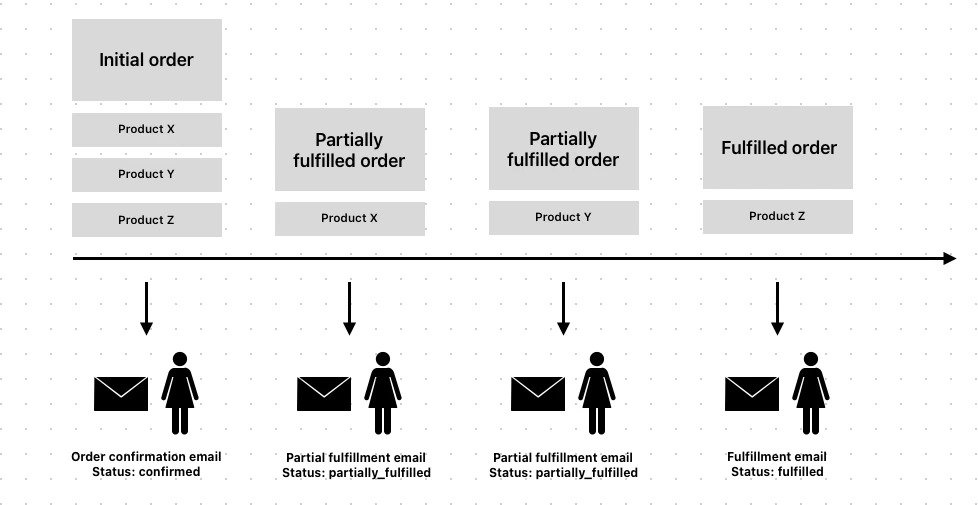
The order states
Web pixel tracking
Web pixel tracking allows the Customer Engagement app for Shopify to track user behavior in a way similar to a cookie, and grants many useful functions. Web pixel tracking will only run when consent is granted in the context where it is required. In Shopify’s Customer Privacy API the marketingAllowed consent has to be accepted to allow the app to start tracking events and sending them to Customer Engagement. There are some prerequisites for web pixel tracking to work:- The tracking module in Customer Engagement must be enabled.
- The product feed import setup in Customer Engagement must be connected to the locales of your Shopify store (For example, en-GB, en-SE).
- The “Soft ID Detect App Embed” toggle must be enabled. You reach it from Settings → Soft identification embed block → View app embed.
- The “Soft identification decrypt key“ must have been entered. You copy this yourself from Customer Engagement, under Administration → Configure Customer Engagement → Soft identification.
- The email template module for abandoned cart emails must exist.
- Marketing automations need to be in place to trigger abandoned cart emails.
1 - Identification
The app supports identification in two ways. Visitors are either identified when they log, in or when they enter your site via a personalized link in an email sent from Customer Engagement. Once a visitor is identified, the app will connect incoming events to them, as well as previously anonymous events that were connected to the same session and cookie.2 - Cart tracking
By enabling this feature you will start tracking the cart activity of your visitors on-site and trigger abandoned cart emails through Customer Engagement. Every time the cart updates, the app will trigger a cart event to Customer Engagement containing the products and the current state of the cart.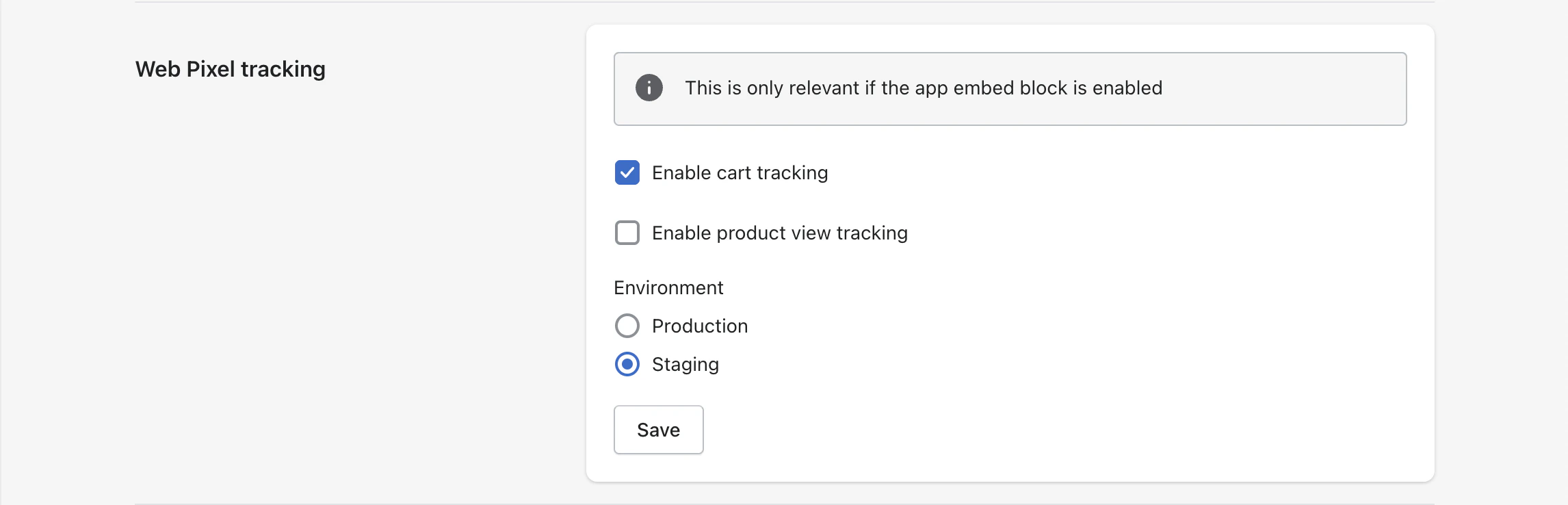
Enable cart tracking

Read more about abandoned cart automations
3 - Cart abandonment
You can decide in Customer Engagement when a cart should be considered abandoned by entering those criteria when you set up your automation.Read more about abandoned cart
4 - Locales
When setting up your automations, you will be able to use locale as a filter in order to send emails in the correct currency and language, connecting each locale to a separate product feed. There is a liquid variable in Shopify which is set based on which locale the customer is shopping in. So if a theme has en-US setup on the store, and you have used a language selector to view the site in US english, then the app will pick up from the theme that the current locale is en-US and use that in events. This can be seen in Shopify under “Settings / Languages” where you can view all available published languages on the store. Under “Settings / Markets” you’ll see the all your markets (locales) and there you can check the default languages assigned to each market.5 - Product view tracking
By enabling this, the app can collect a visitor’s product views on-site which you can then segment and act upon in Customer Engagement.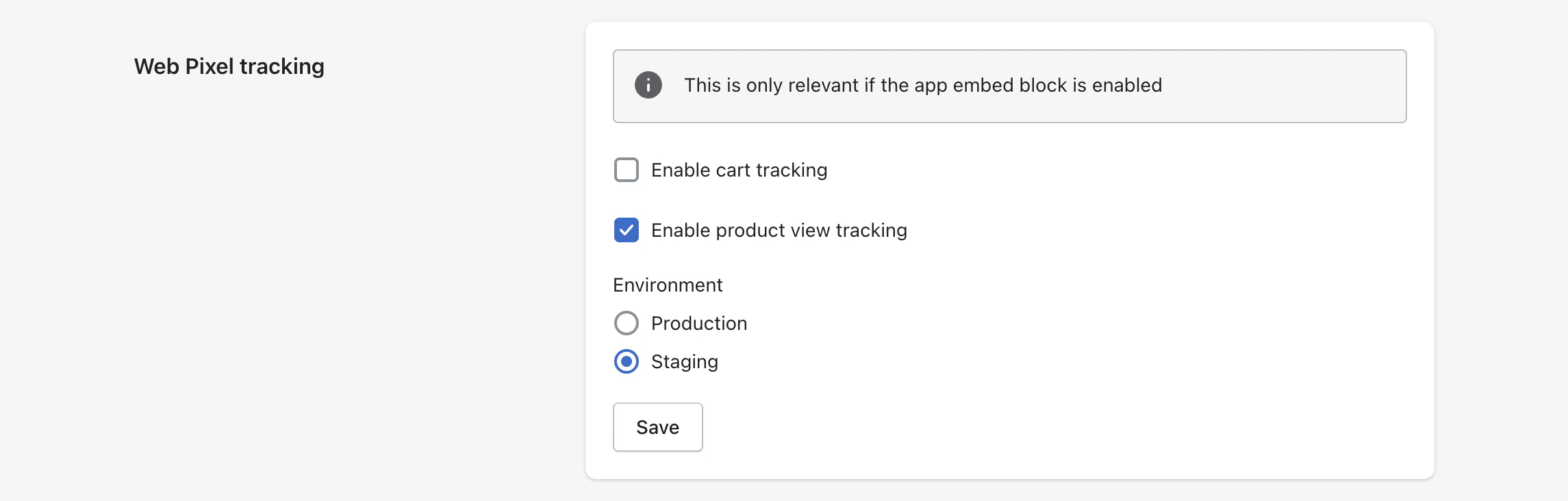
Enable product view tracking